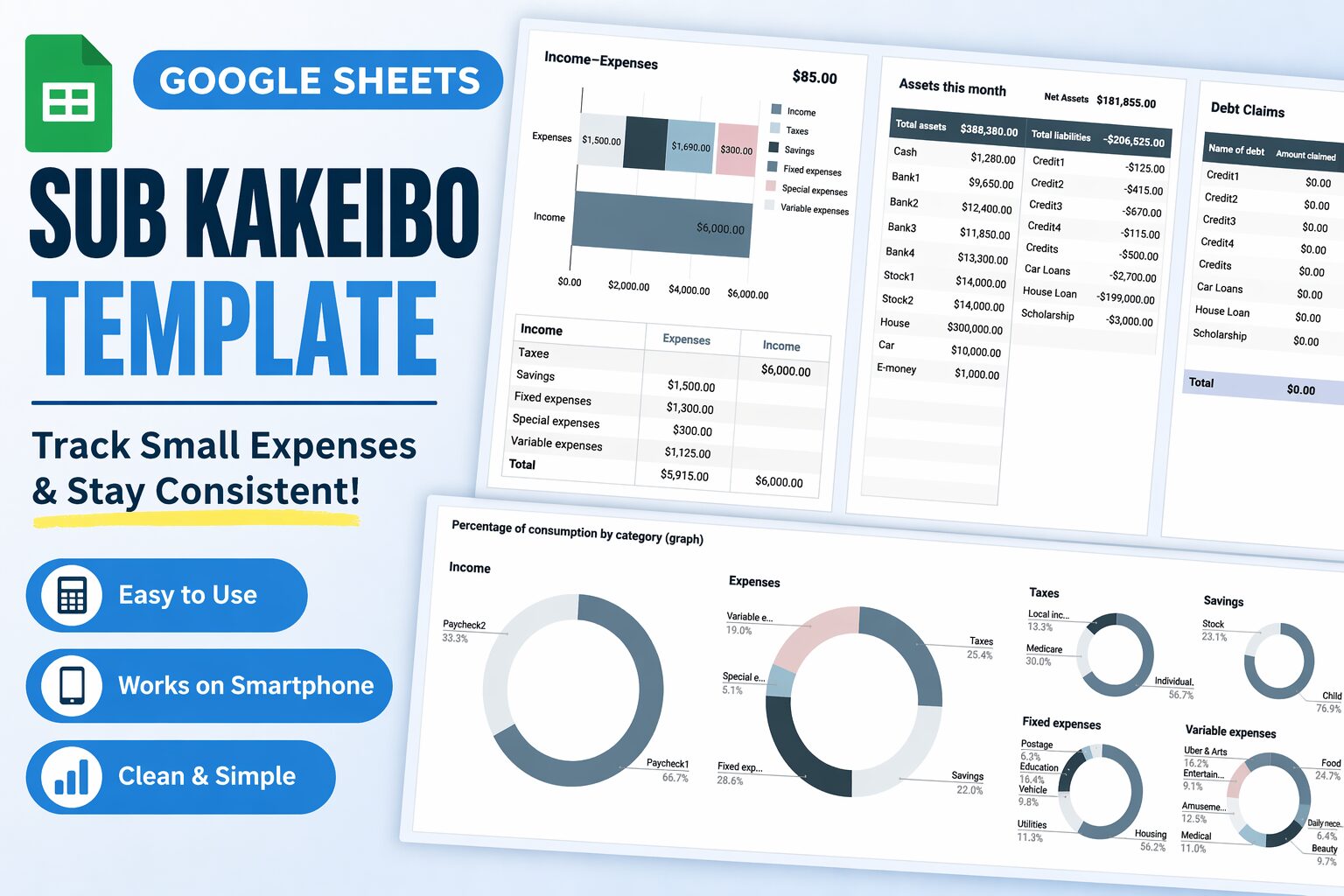
- Track Small Expenses & Stay Consistent with Your Budget
- What is a Sub Kakeibo?
- Why You Need a Sub Kakeibo
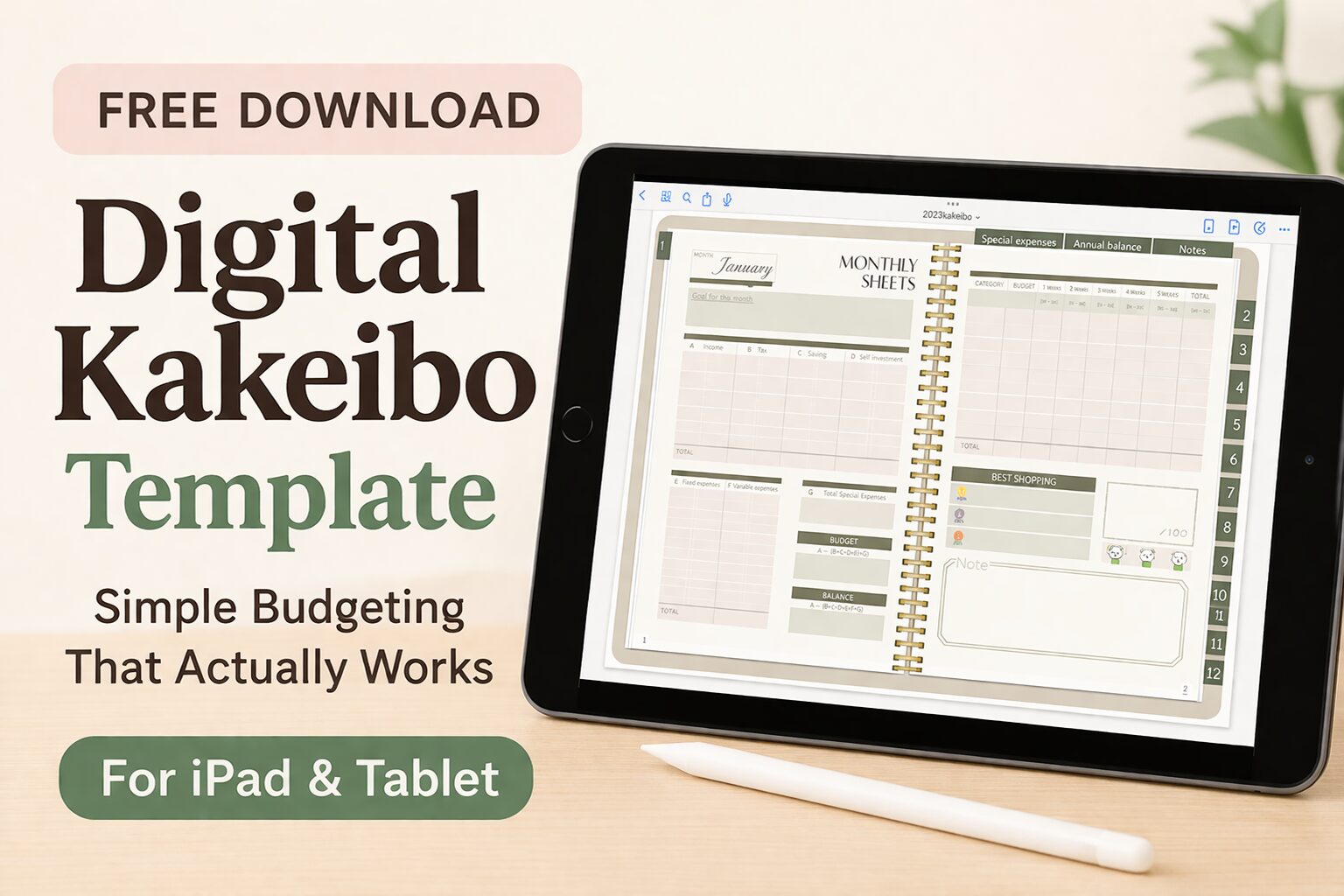
- Features of This Template
- Who This Template Is For
- How to use the Kakeibo
- Download
Track Small Expenses & Stay Consistent with Your Budget
Do you ever feel like this?
- “I’m tracking my budget… but I still overspend.”
- “Small daily expenses keep slipping through.”
- “I can’t stay consistent with my household budget.”
You’re not alone.
Most people fail at budgeting not because they don’t try—
but because they don’t track the details that actually matter.
That’s exactly why I created this.
A Sub Kakeibo Template designed to help you track small, everyday spending easily.
What is a Sub Kakeibo?
A Sub Kakeibo is a simple tracking sheet for daily expenses.
While your main budget tracks overall income and expenses,
this template focuses on:
- Daily spending
- Small purchases
- Cash flow awareness
It acts like a “money awareness tool” rather than just a record.
Kakeibo itself is not just about numbers.
It’s about understanding your spending habits and improving them over time.
Why You Need a Sub Kakeibo
Even if you already use a budget, you may still struggle.
That’s because:
Monthly totals don’t show daily behavior
For example:
- Coffee here
- Snacks there
- Small online purchases
These seem small…
but they add up—and more importantly, they reflect your habits.
A Sub Kakeibo helps you:
- See where your money actually goes
- Catch overspending early
- Build consistent money awareness
Features of This Template
This Sub Kakeibo is designed to be simple and sustainable.
Easy Input
- Just enter date, category, and amount
- No complicated setup
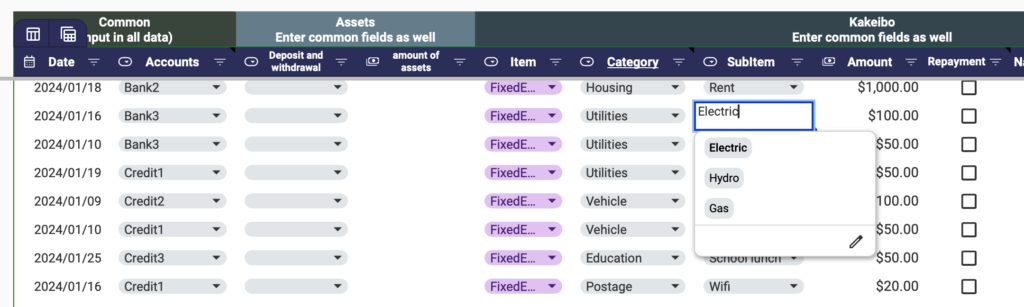
Daily Tracking
- Focus on everyday spending
- Helps build awareness in real-time
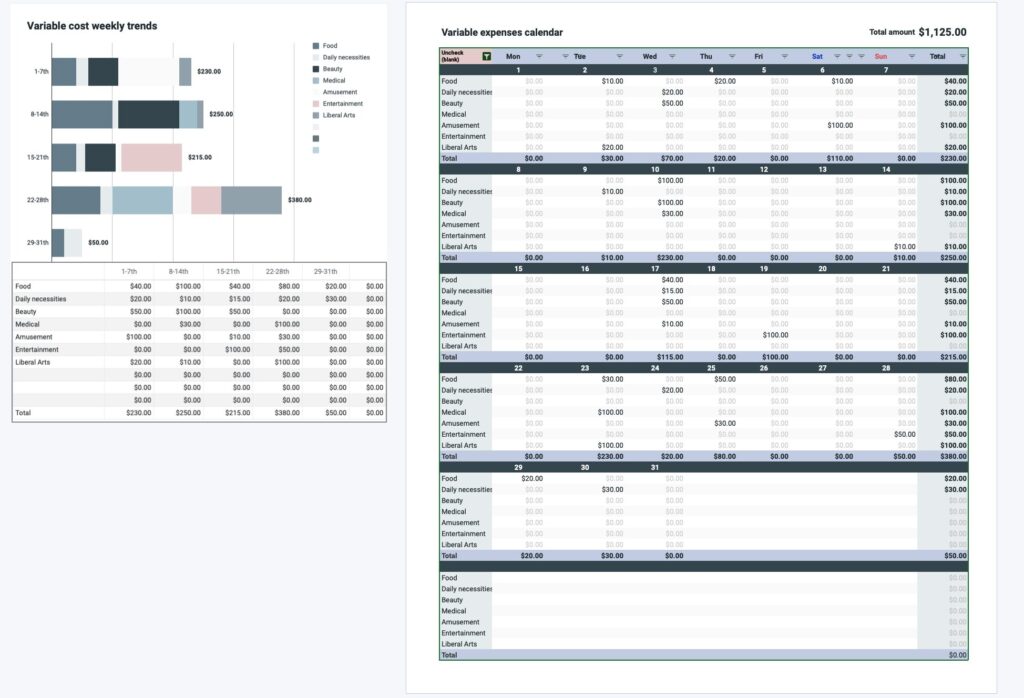
Visual Simplicity
- Clean layout
- No overwhelm, no confusion
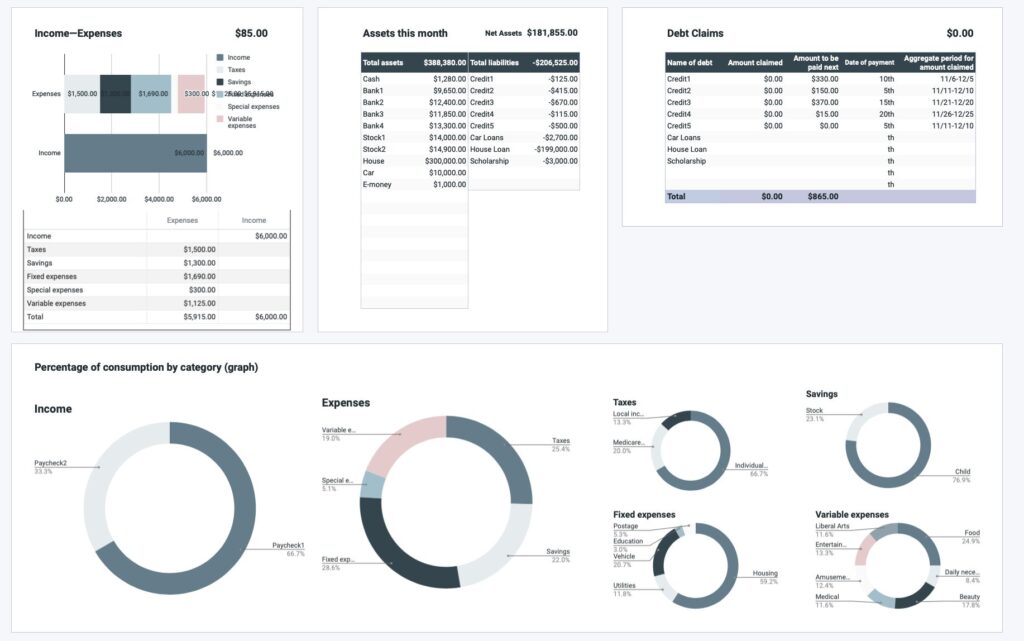
Who This Template Is For
This template is perfect if you:
- Keep quitting your budget
- Want to control small expenses
- Prefer simple and minimal tools
- Want to build better money habits
How to use the Kakeibo
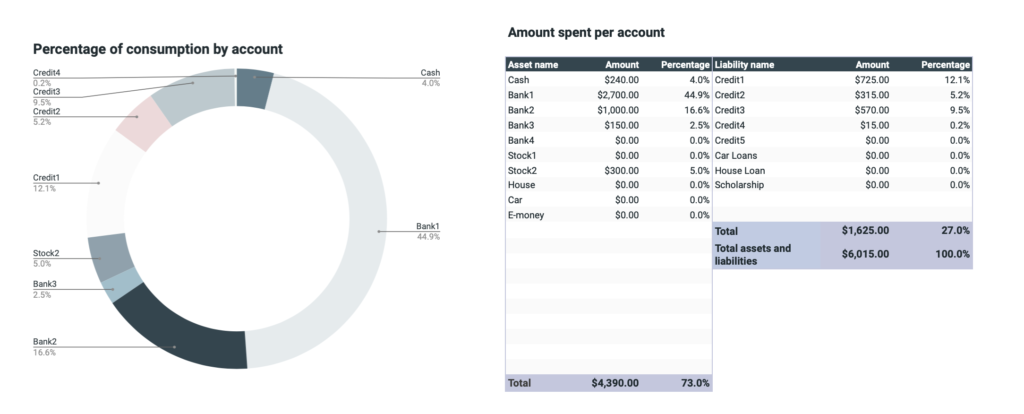
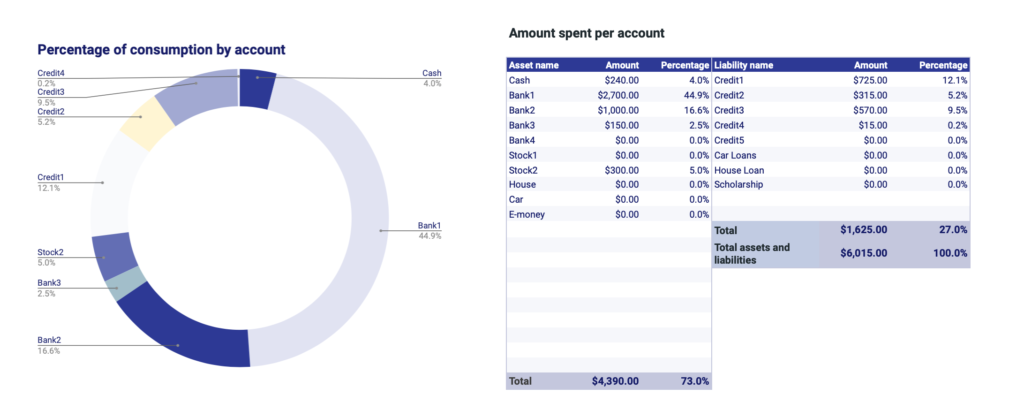
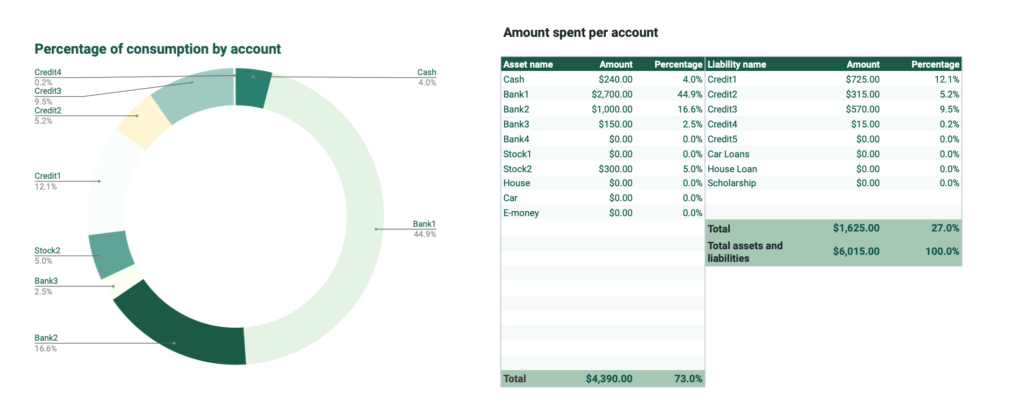
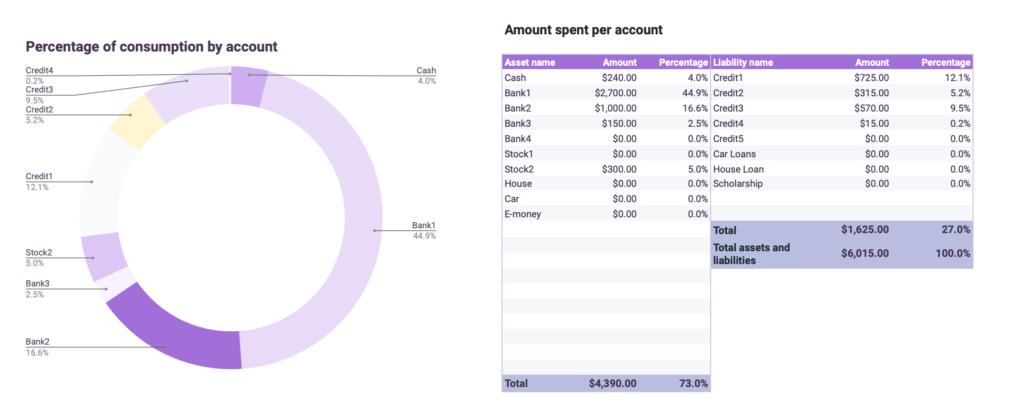
Select a design
You can choose from 5 different designs.
All designs can be downloaded in one batch, so please select your favorite design after downloading.
SmokyBlue
Indigo
Green
Lavender
Coral
Download, copy and save
Download the PDF file and click on the Sub-Kakeibo link.
This template uses one file per year.
Please copy and save the downloaded file before use.
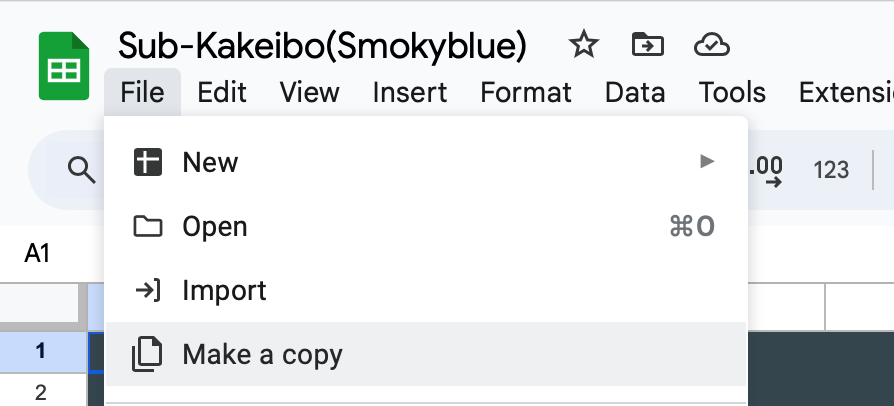
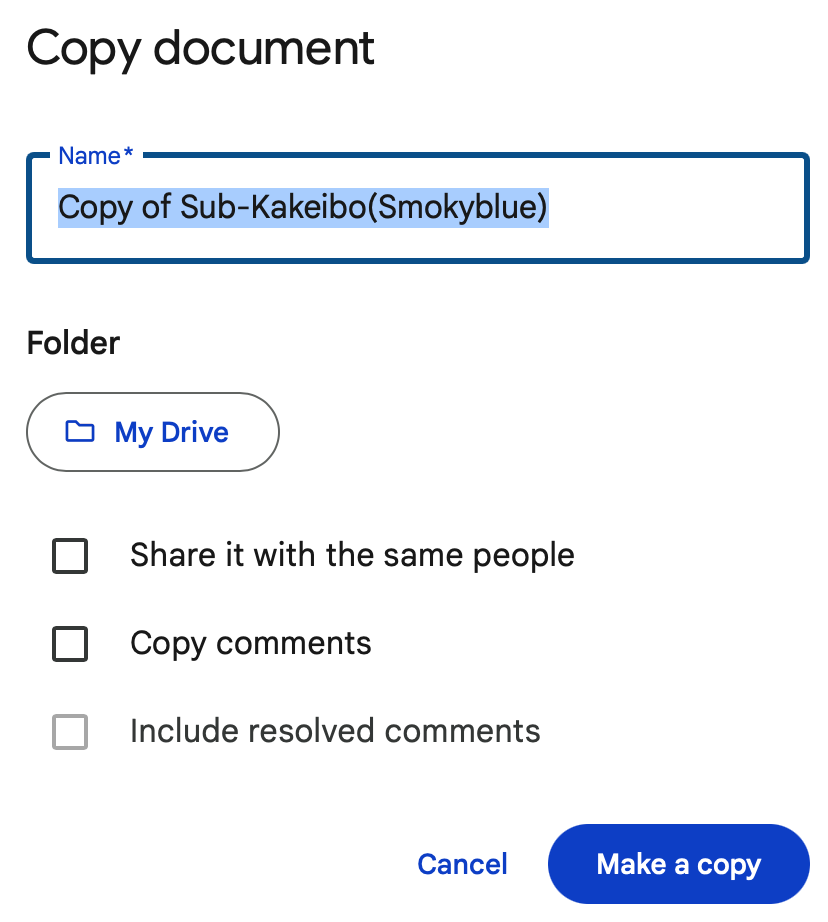
Click on Make a copy, name it “2024 Sub-Kakeibo” or something similar.
Make two copies for the original.
Setup sheet
If you are using a tablet device such as an iPad, please download the “Spreadsheet” application and use it from the application.
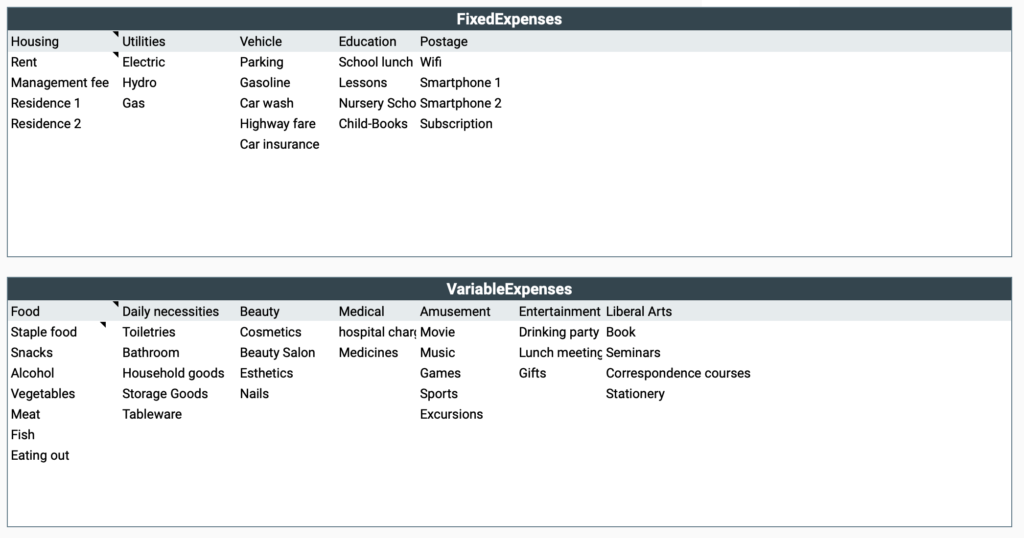
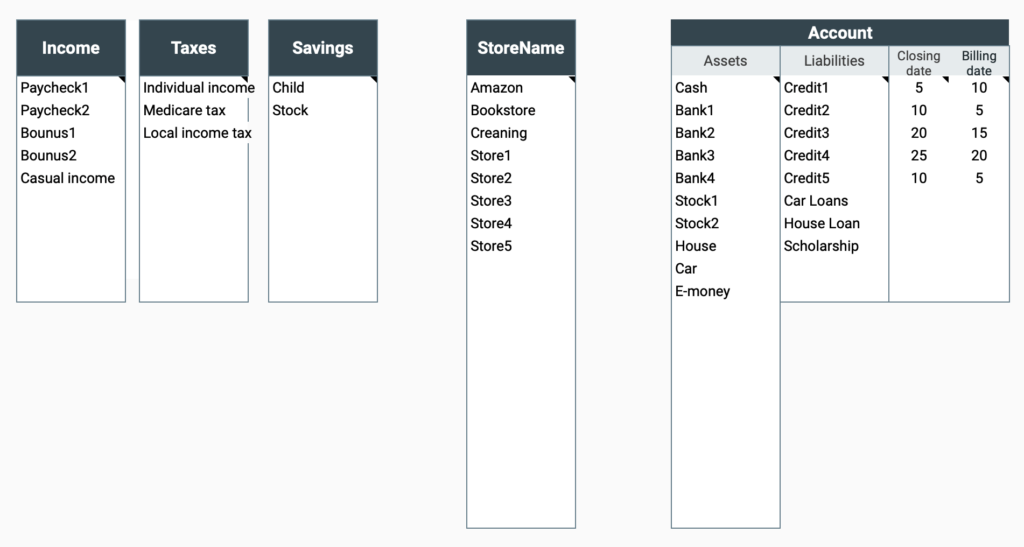
Enter expense item name
- Income
- Social Insurance/Taxes
- Savings
- Fixed Expenses
- Variable expenses
All expenses can be entered up to 10 items.
Fixed and variable expenses can be entered up to 10 items ✖️ sub-items up to 10 items.
Please do not duplicate expense names.
For example, “Husband” for income name, “Husband” for savings name, etc.
Enter account and store name
Account names should be entered separately for asset and liability accounts.
Next to the liability account, there is a field to enter the closing date and payment date.
Enter the closing date and payment date for credit cards.
If the closing date is the last day of the month, enter “31.
This corresponds to the last day of the respective month.
By entering the closing date and billing date, the credit card billing amount will be displayed on the monthly sheet.
Enter the name of the store you frequent in the Store Name field.
If you own a home, enter “house” in the Assets account, or “house loan” in the Liabilities account if there is a loan outstanding, etc.
Date setting
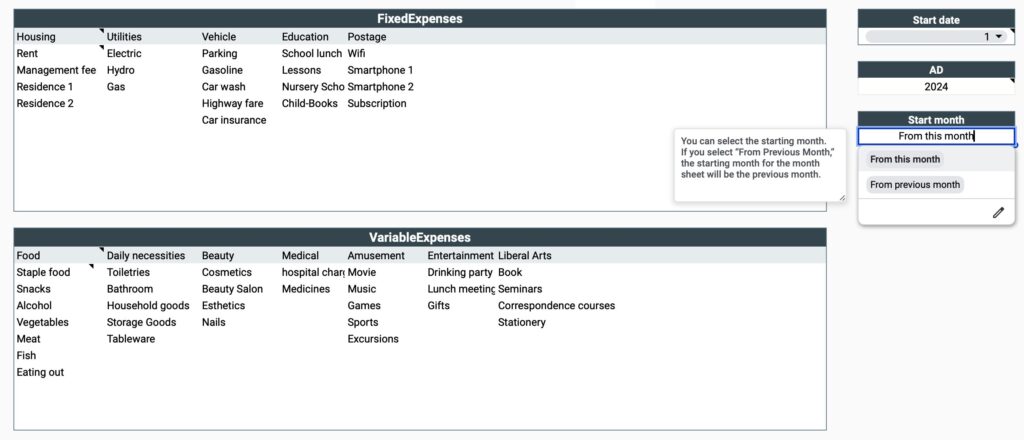
You can change the start date to match your payday, etc.
Selecting a start date will be reflected in the month and year sheets.
For the year, select the year in which you want to start the household account.
You can select “from current month” or “from previous month” for the start month.
For example, if the start date is the 25th and you select the start month to be from the previous month, the range for January will be “December 25 to January 24”.
Input sheet
After completing the setup sheet, move to the input sheet.
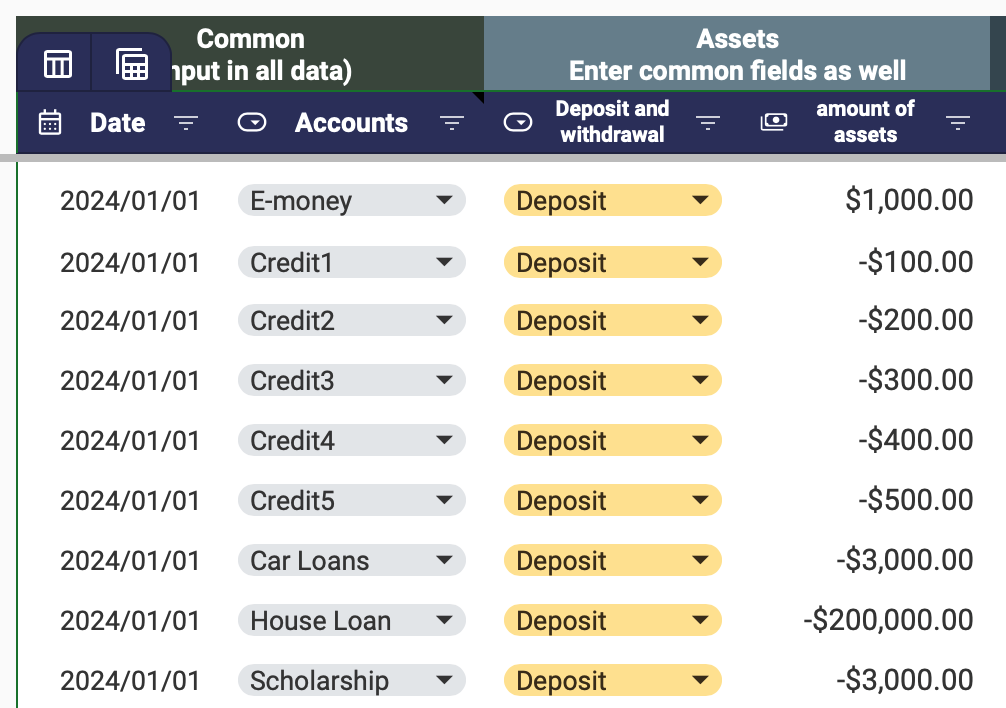
Enter asset and liability amounts
First, enter the current asset and liability amounts.
You can only enter the asset and liability amounts once.
- Date
- Account
- Deposits and Withdrawals
- Assets
For deposits and withdrawals, select Deposits, and for accounts, select from the tabs. (The account reflects the contents of the input sheet.)
Debt account amounts should be shown as negative.
Enter the current value of assets for owner-occupied homes and cars.
Entry of income and expenses
Enter daily income and expense items.
- Date
- Item 1
Income, Taxes, Savings, Fixed Expenses, Variable Expenses, Special Expenses - Category
- Sub-item
Select only fixed and variable expenses - Amount
- Refund Check
- Item name
- Store Name
- Account
- Asset Balance
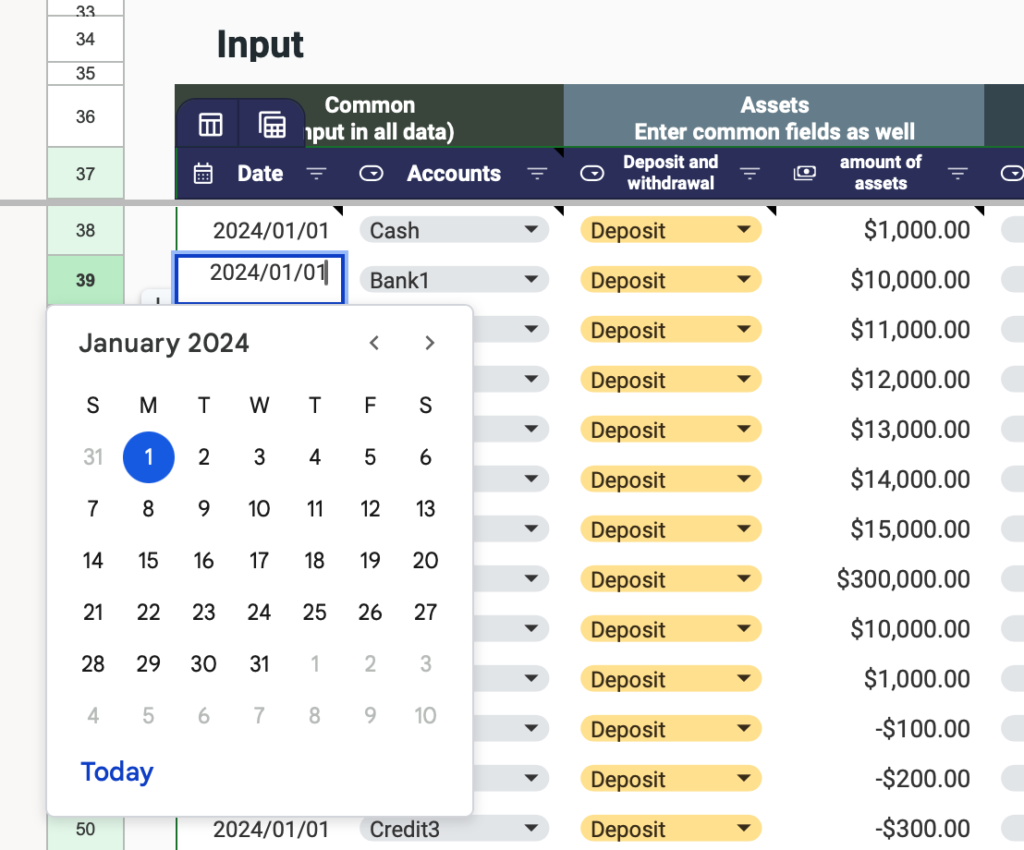
Double-click the date entry to display the calendar.
If you are using the iPad or iPhone Spreadsheet application, the calendar feature is not available.
Enter the date directly in the date field, for example, "1/10".
The Western calendar year is automatically reflected.Fund transfers
The expense line item should be linked to item 1, and only fixed and variable expenses should be selected for the sub-items.
For Repayment checks, check the items you do not wish to include in your income and expenses.
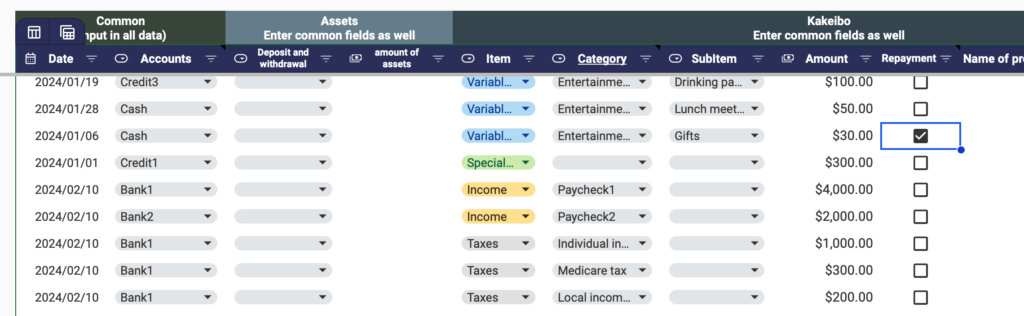
Item name and store name can be left blank.
Funds Transfer
- Withdraw cash from the bank
- Transfer funds for savings
- Make a credit card payment
- Make a car or house loan payment
- Transfer funds when you have a refundable check
The funds transfer item is used primarily in these situations.
The information entered in the funds item is not included in consumption as funds are transferred between accounts.
This is the primary use of the Funds Transfer item.
The information you enter in the Funds section is not included in the consumption since the funds are transferred between accounts.
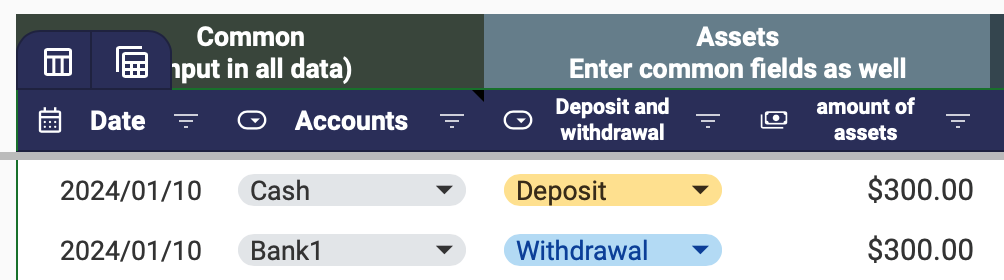
To withdraw cash from a bank
Select the date, for Deposits and Withdrawals, enter “Deposit”, enter the amount in Asset Amount, and for Account, select “Cash”.
On the same date, select “Withdrawal”, enter the same amount, and select “Bank” for the account name.
When transferring funds for savings
For example, if you want to transfer funds from “Bank 1” to “Bank 2,” select “Expenditure” and “Savings” and select “Bank 1” for the account.
On the same date, select “Deposit”, enter the same amount entered in Savings, and select “Bank 2” for the account.
Since the savings amount is subtracted from Bank 1 in the Savings section, enter only the Deposit section in the Funds Transfer.

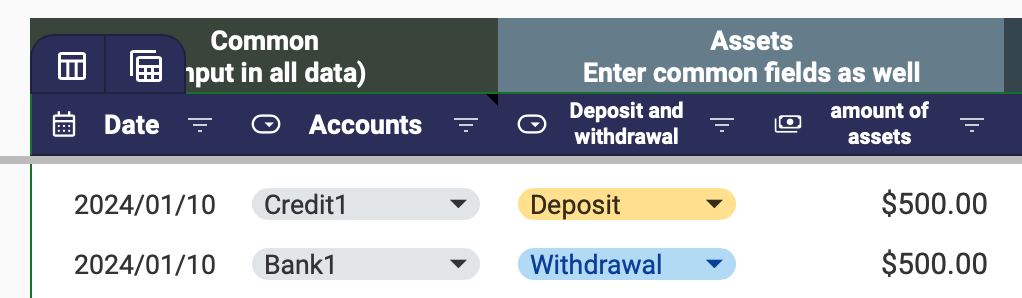
To make a credit card payment
On the date of the credit card payment, transfer funds from the account from which the payment was made to the credit card account.
Repay a home or car loan
Enter the amount to be repaid in the Fixed Cost Car Expenses field and select the source of the account
Select the funds transfer deposit, enter the same amount, and select “Car Loan”

Transfer of funds when a refund check is made.
Example: A company expense is paid in advance with Credit Card 1 and transferred to Bank 1 at a later date.
- Place a refund check in the prepayment item.
- Deposit the funds to Bank 1 on the transfer date.

How to use filters
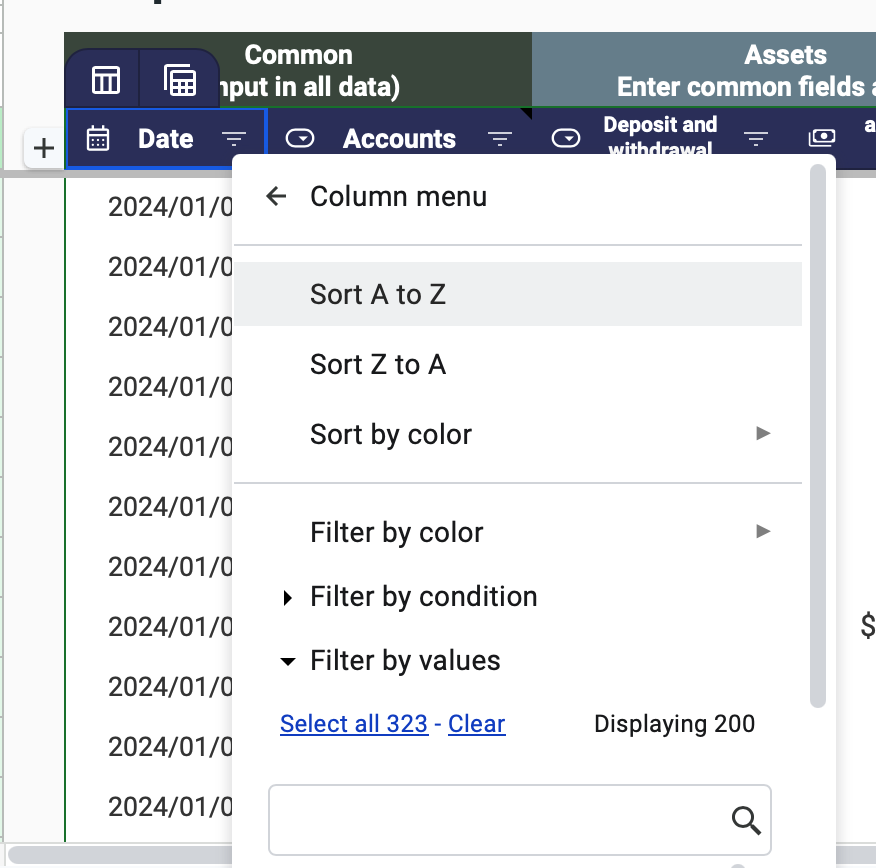
Click on the filter in the heading to sort by type or by date.
Click on the column you wish to sort by, select “Filter column” and click on the item you wish to display.
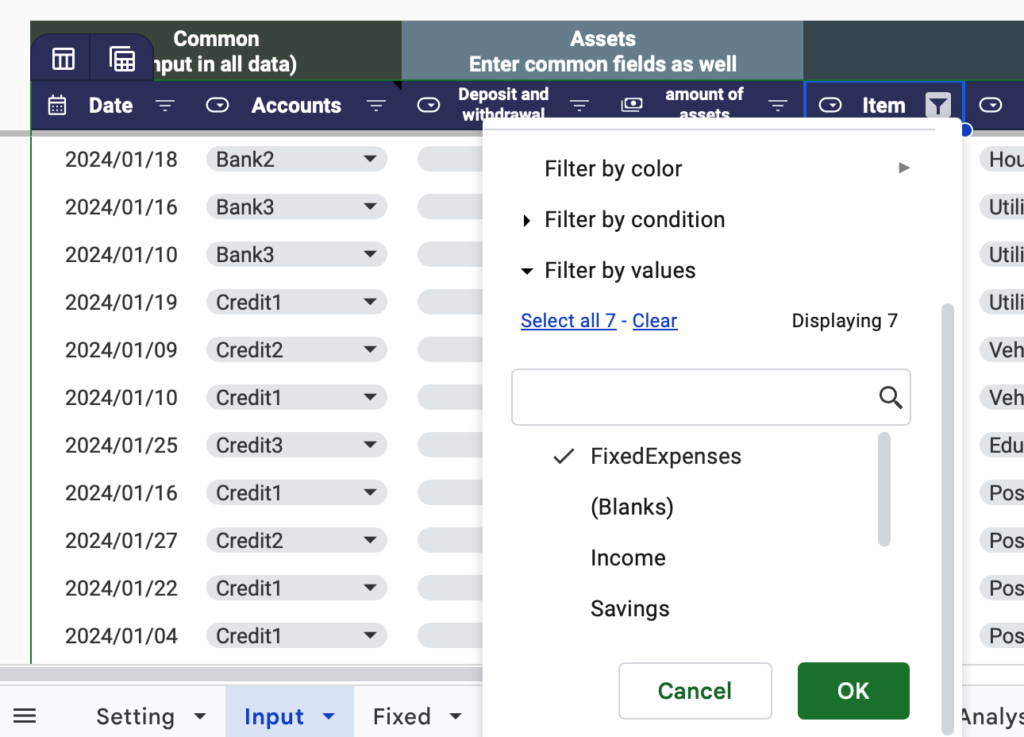
To sort by date, click on “Filter column” and then “Sort A to Z”.
Fixed Expenses sheet
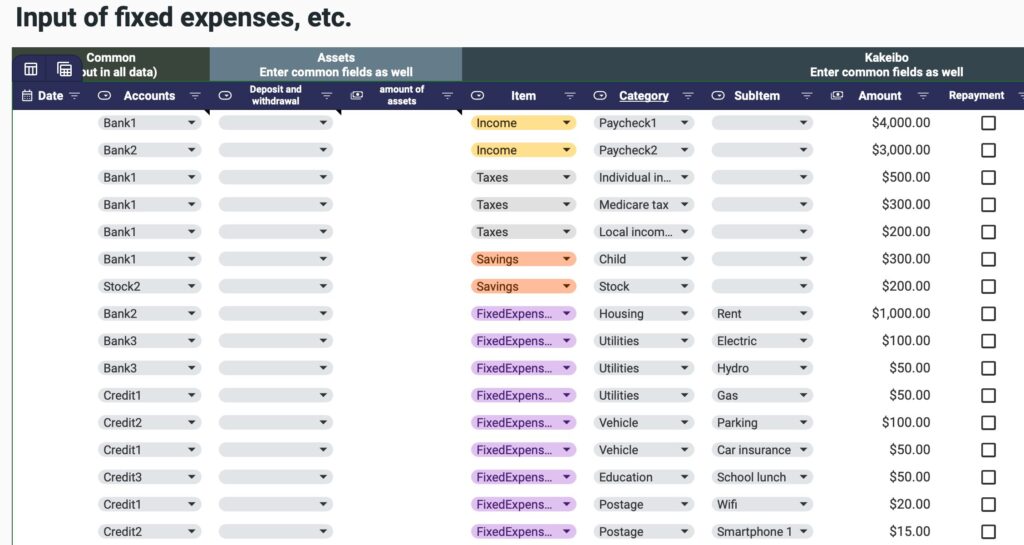
The same format as the input sheet is provided.
Fixed expenses and other entries are entered on this sheet to eliminate the need for monthly entries for items other than variable expenses.
Dates are blank, and fund transfers are also entered on this sheet for items that need to be entered monthly.
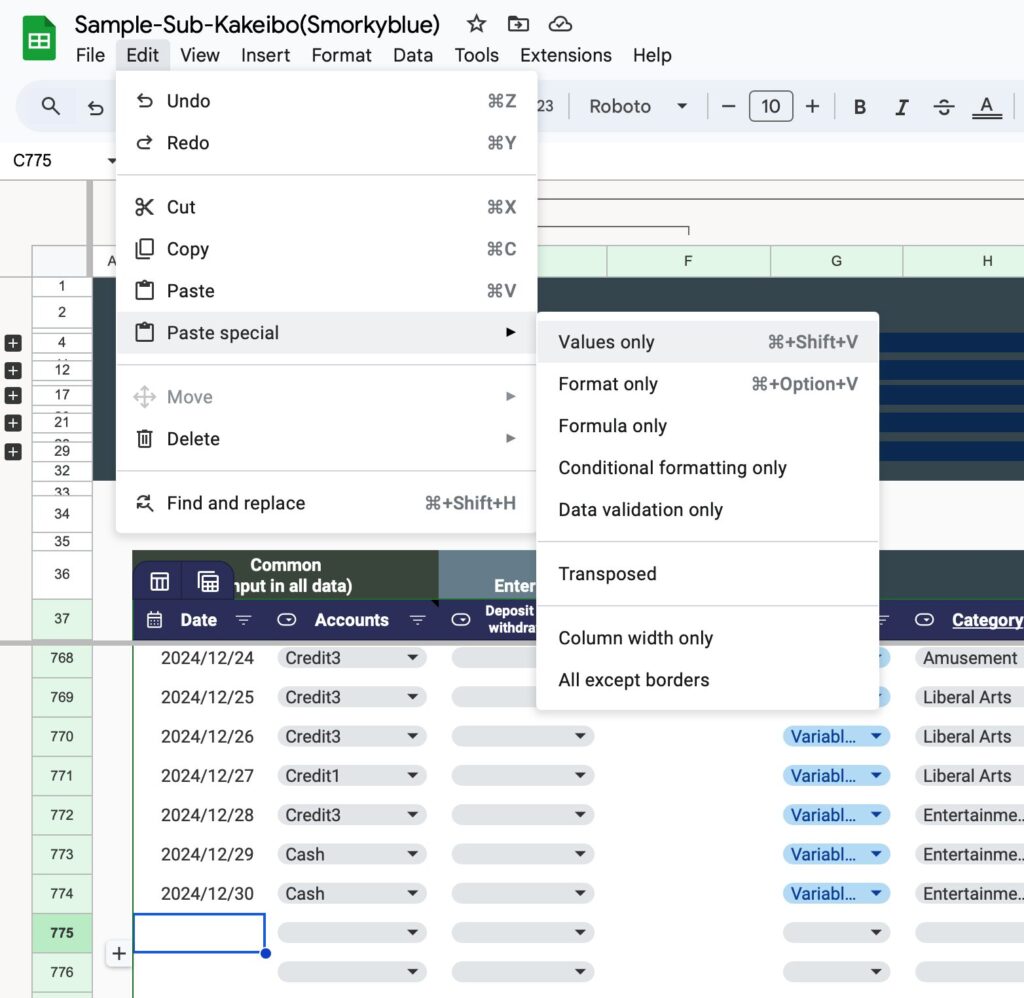
Copy and paste everything except the headings into the input sheet when the month changes.
After pasting to the input sheet, enter the date and correct the amount if it changes.
To copy and paste from the Fixed Expenses sheet, right-click and select Paste "Values Only".
Monthly sheet
There is one sheet for the month.
Select “January through December” in Select Month.
The year value will reflect the year entered in the settings.
The period displayed will change depending on the start date and start month entered in the settings.

Display Items
- Consumption by expense item
- Income/Expense Balance Bar Graph
- Amount of debt claims
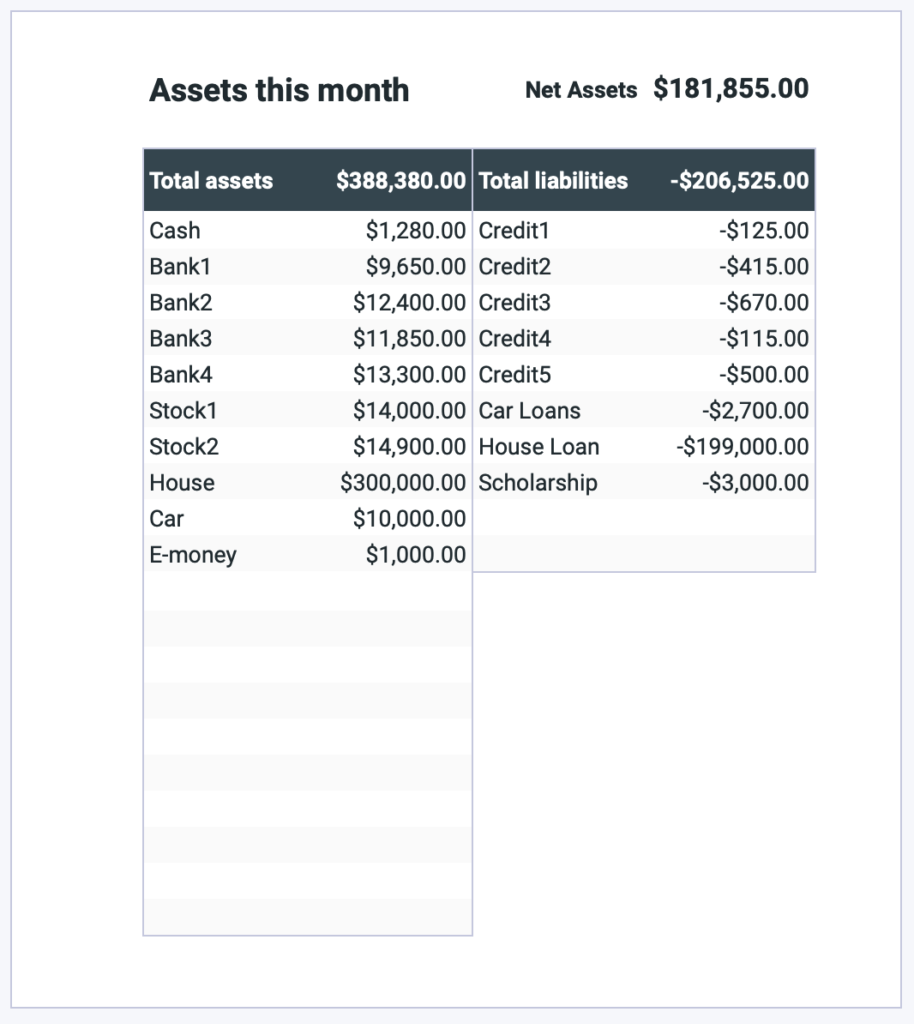
- Assets of the month
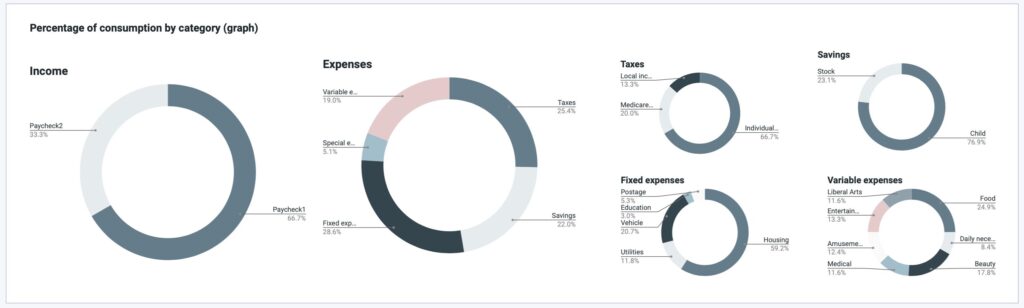
- Pie Chart of Consumption Ratio by Expenses
- Liabilities billed this month
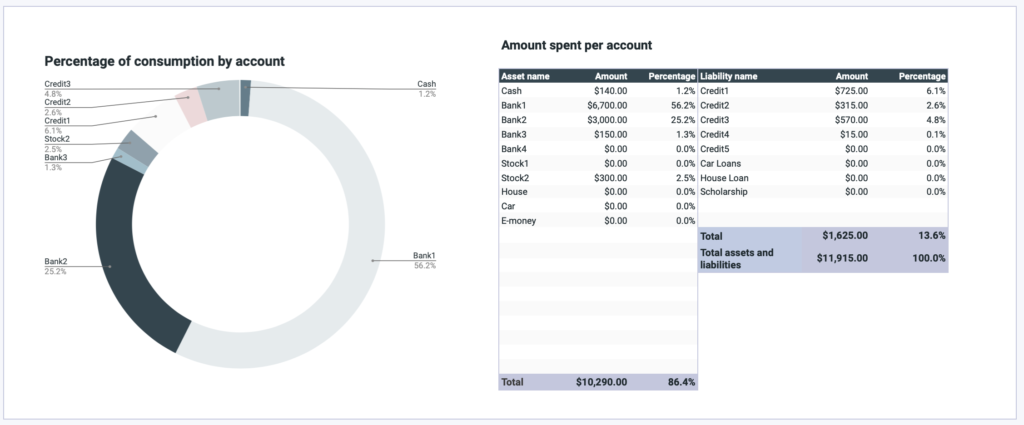
- Consumption by account
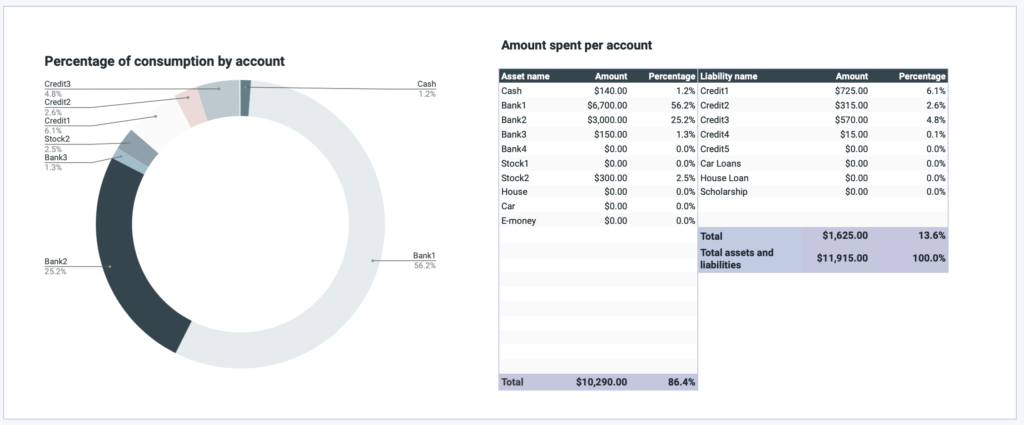
- Consumption by store name
- Percentage consumption by account and store name pie chart
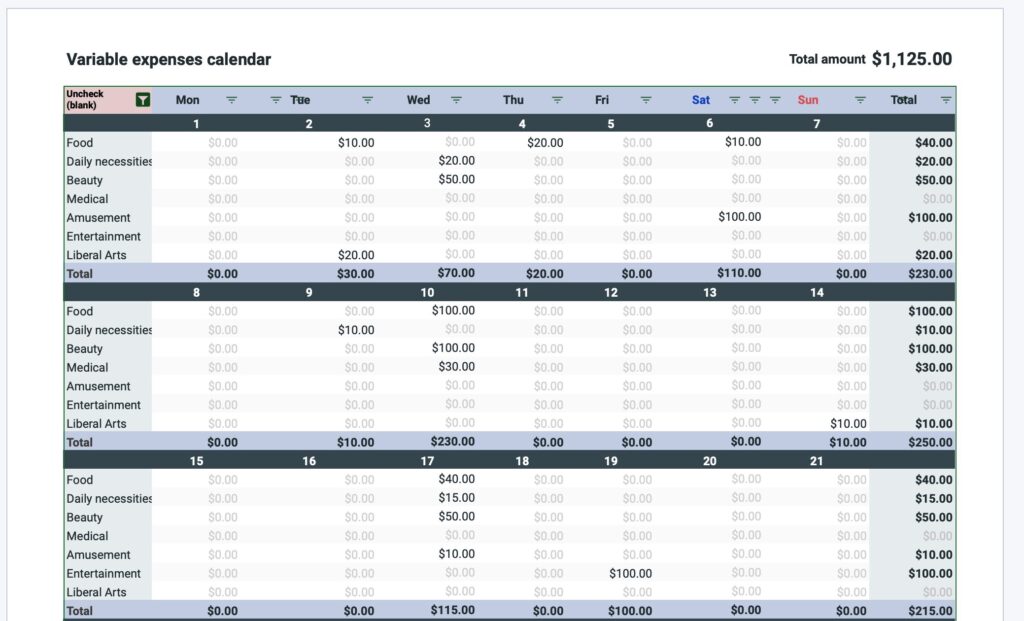
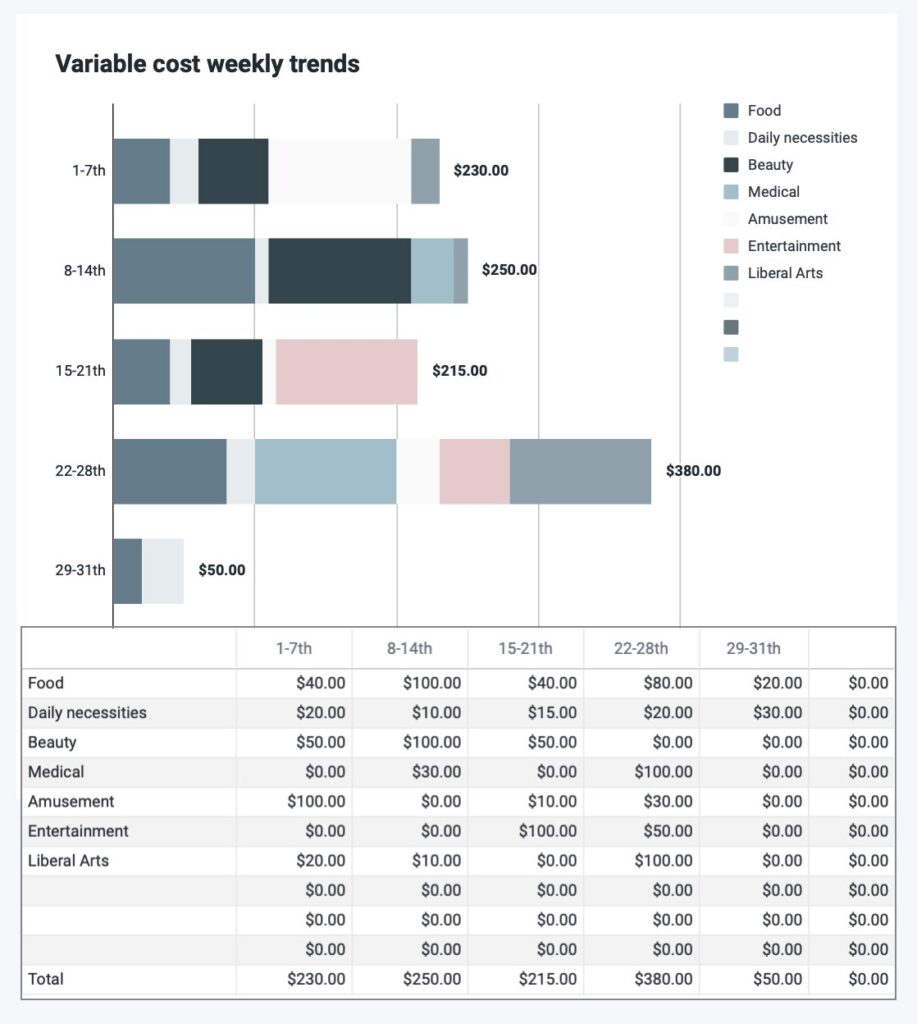
- Variable expense calendar
- Variable Expenses Weekly Bar Graph
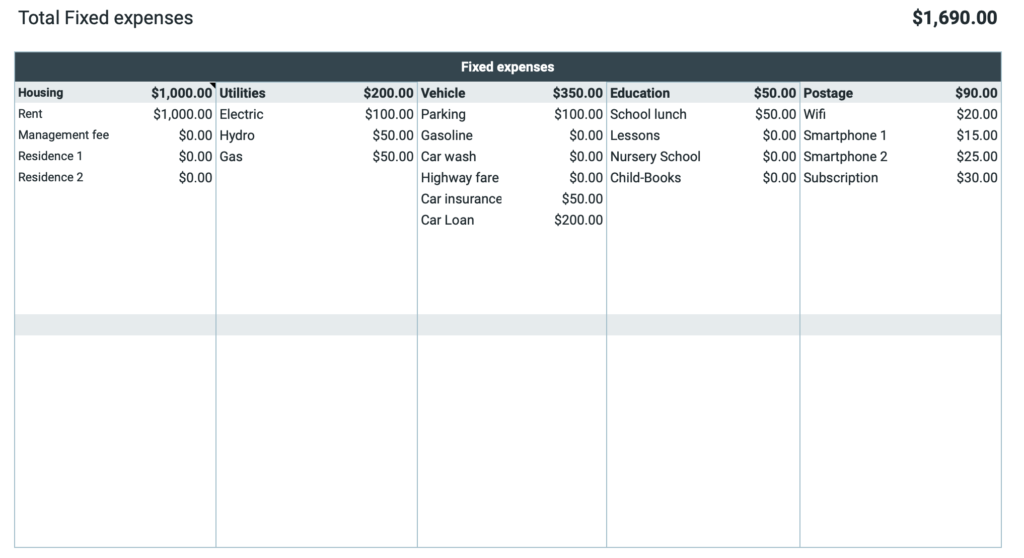
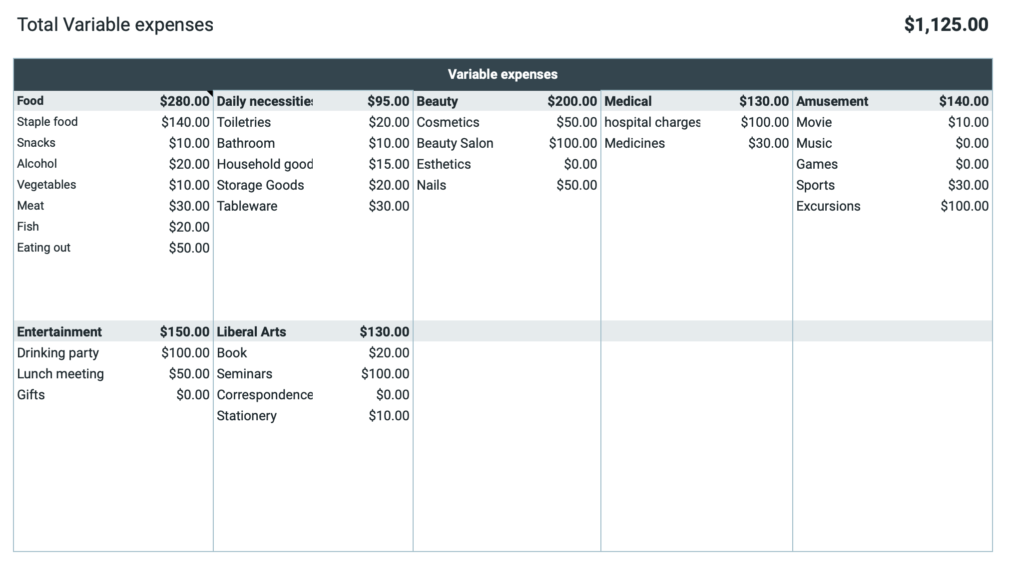
Consumption by expense category
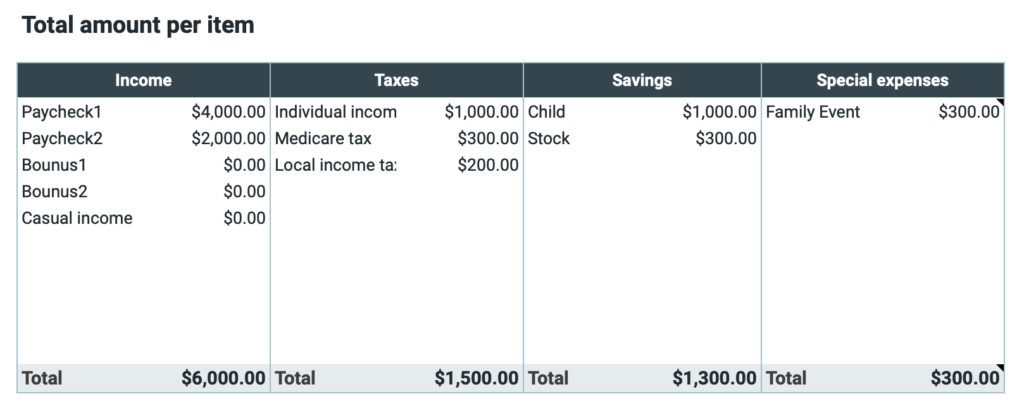
Fixed and variable costs are the total amount of expenses on the input sheet.
It is not the total amount of the sub-items.
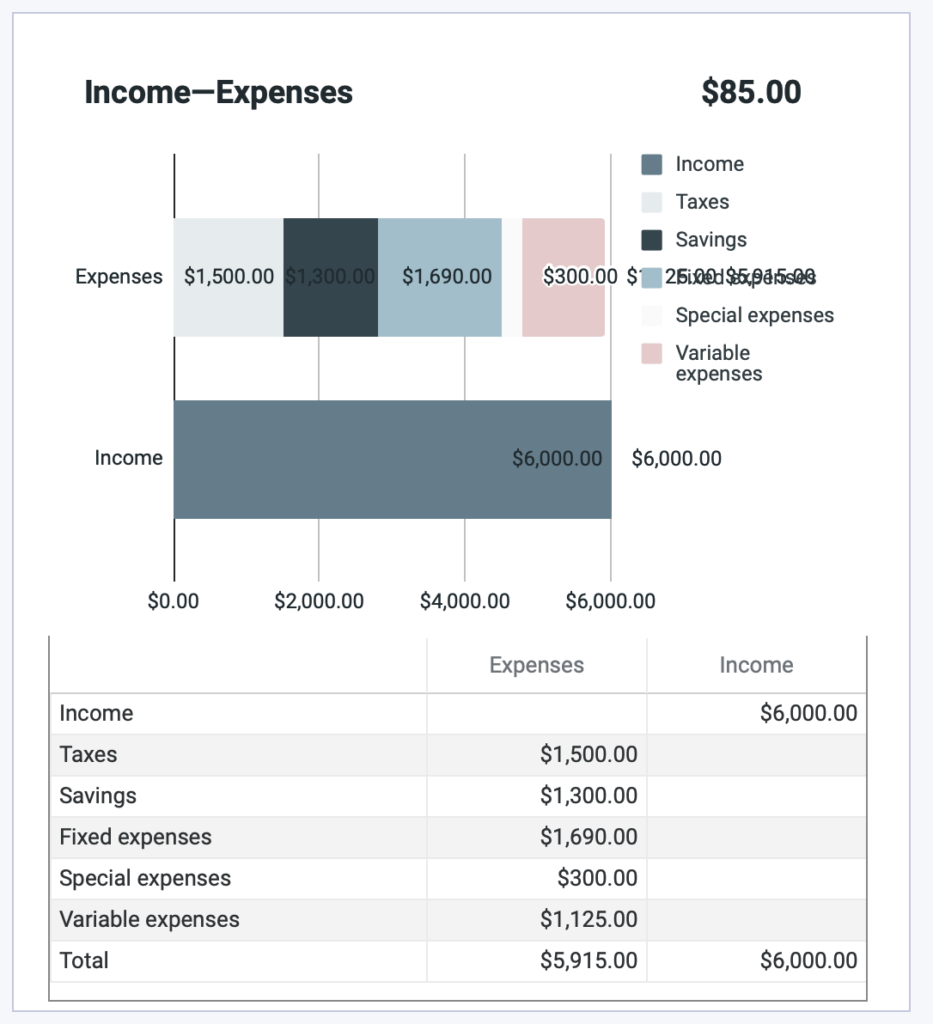
Income/Expenditure Balance Bar Graph
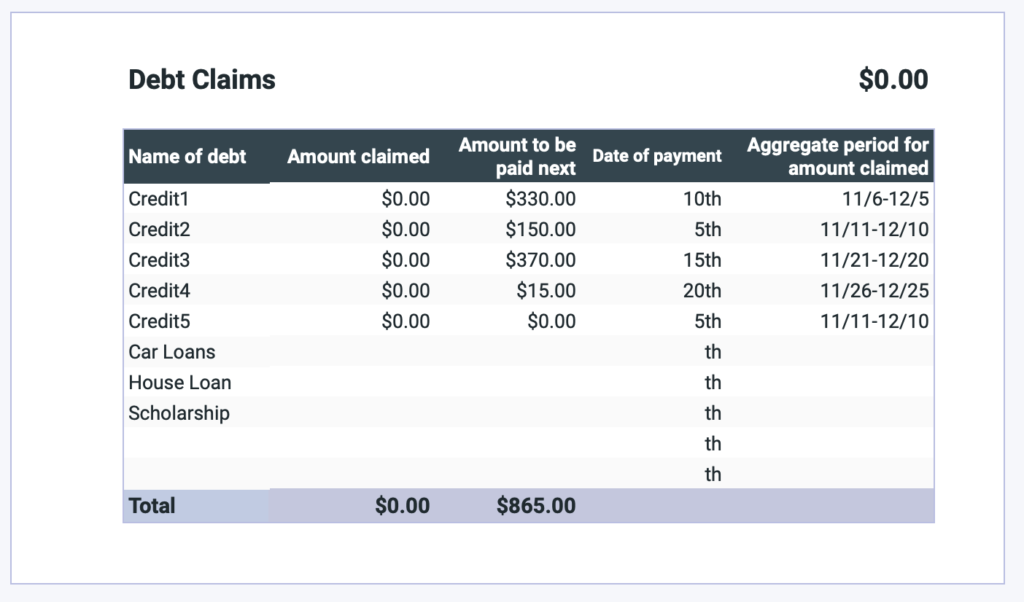
Debt Billing Amount
The amount billed will be based on the closing date entered in the settings.
The closing date is the date when the credit card usage amount is totaled, and the billing date is the payment date.
If the month sheet is March and the month ends on the 15th of each month and payment is due on the 10th of the following month,
the amount spent from January 16 to February 15 will be paid on March 10.
Therefore, the exact billing amount will not be displayed for the first two months after the start of the household account book.
Also, if you have not entered a closing date in the settings, the billing amount will not be displayed for debt accounts.
Depending on the start date you have set, there is a possibility that the accurate invoice amount will not be displayed even in the third month.
If you set the start date as the 25th, the household account will start on January 25th, so if the closing date is before the 25th, the exact billing date cannot be calculated.
Assets this month
Consumption Ratio by Expense Category Pie Chart
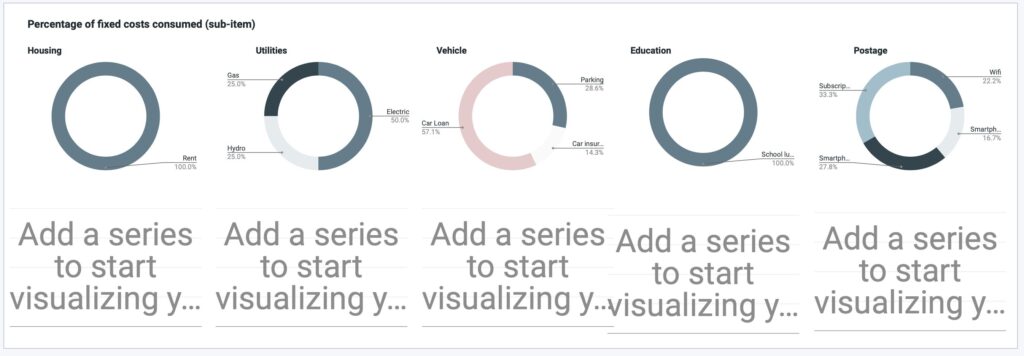
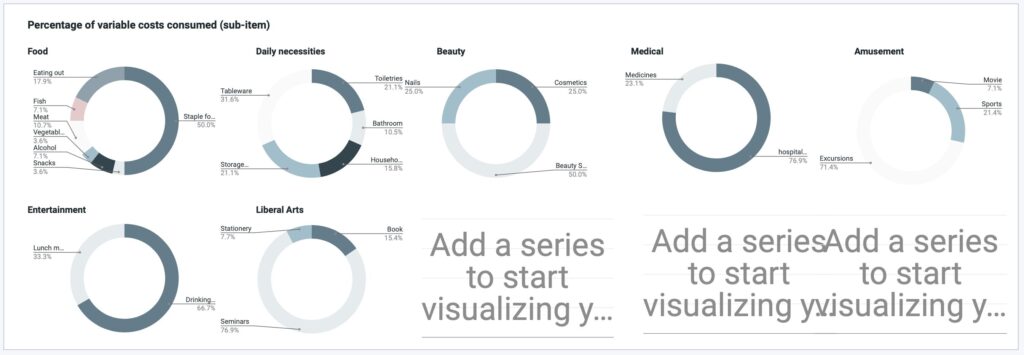
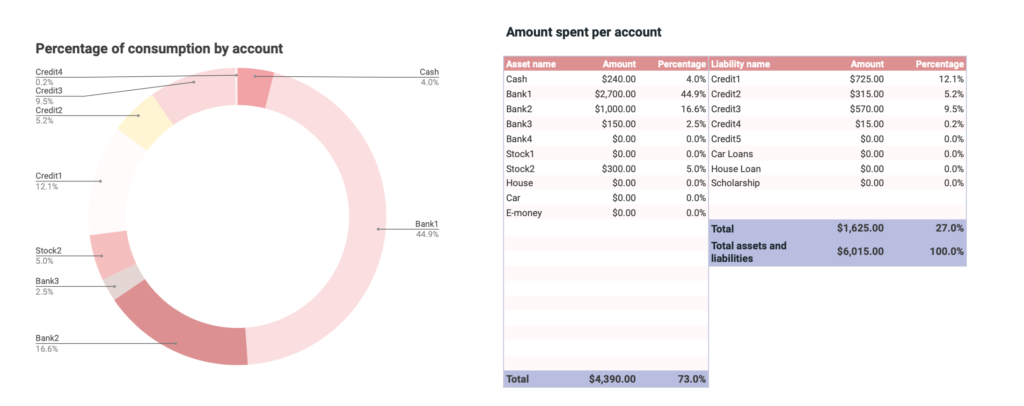
Consumption Amount and Consumption Percentage by Account
Consumption Amount and Consumption Percentage by Store Name
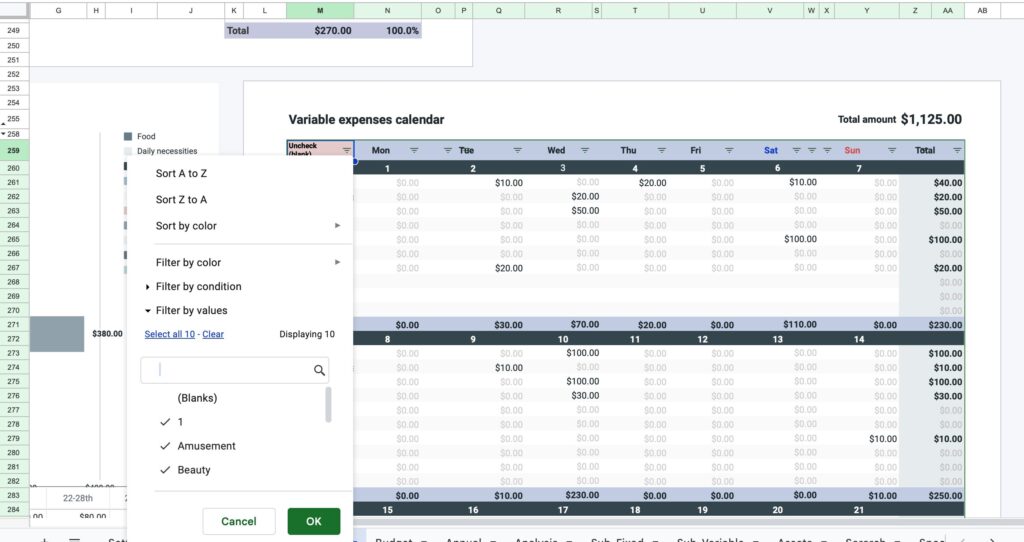
Variable Cost Calendar
Click on cell M259 and uncheck (blank).
Blank rows will be hidden.
It starts from the date entered in the settings.
Variable cost weekly bar graph
Budget sheet
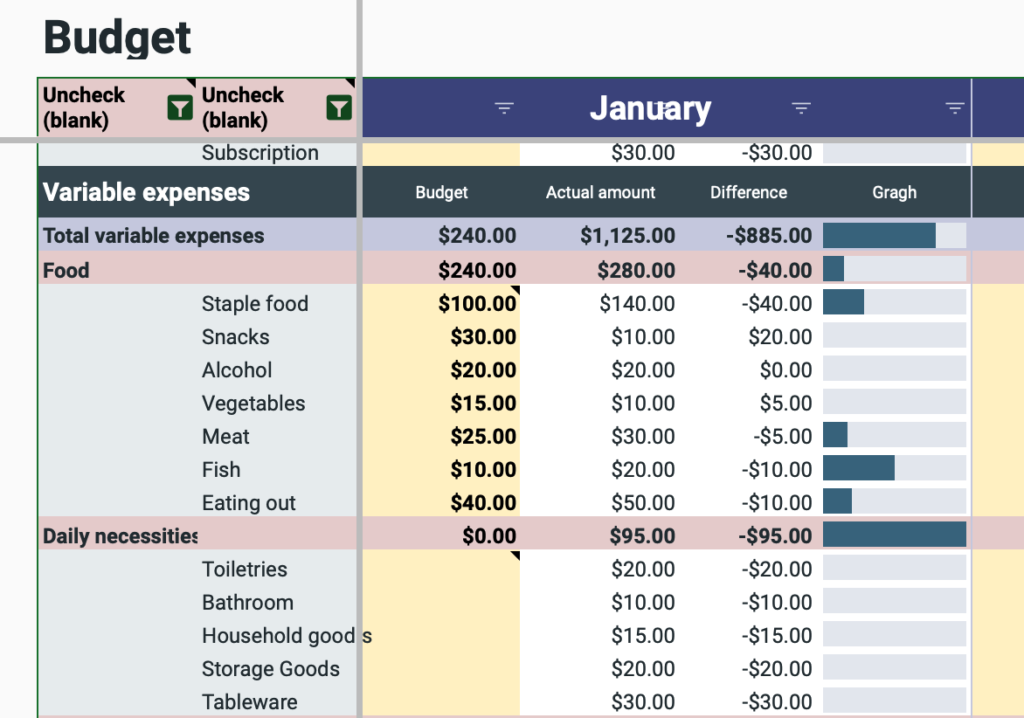
Select the filter in cell B11 and cell C11 and uncheck (blank).
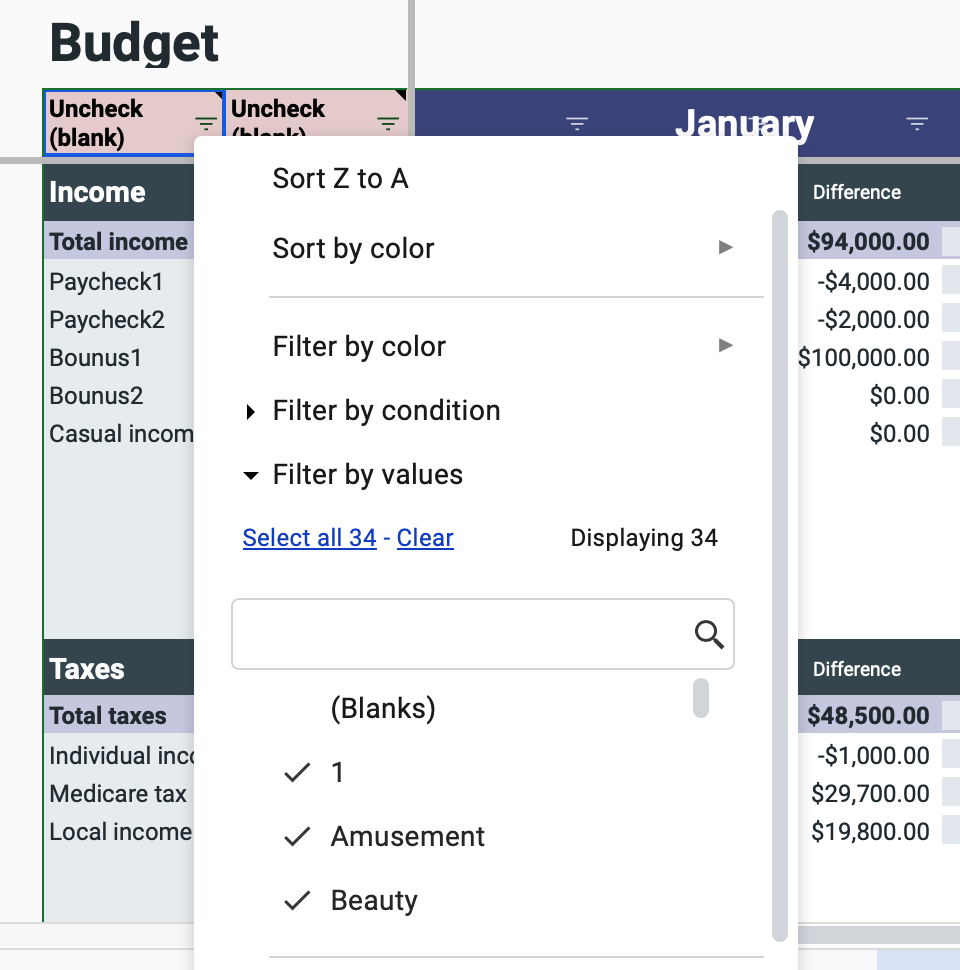
Only budget items are manually entered for each month. (yellow background).
The variance shows actual minus budget, and if the budget is exceeded, the graph will be colored.
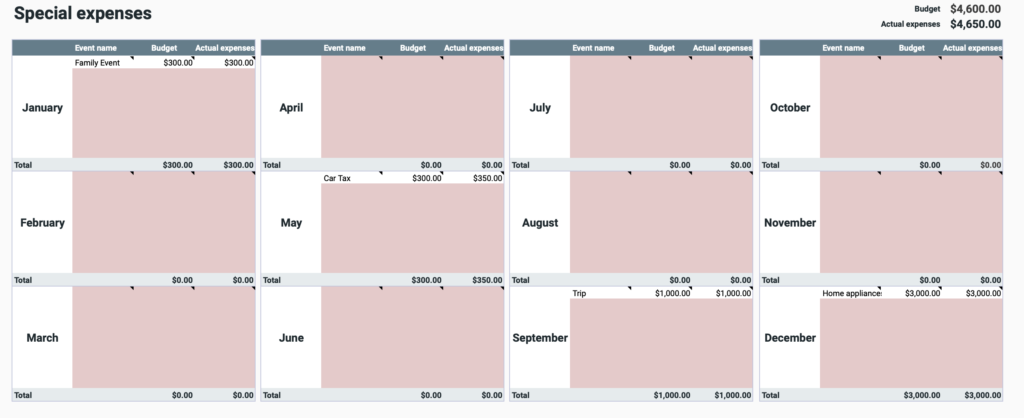
Special Expense Sheet
Special expenses are entered on the input sheet, but a special expenses sheet is provided to make it easier to see a list of special expenses for the year.
Enter the event name, budget, and actual expenses for each month.
Annual sheet
- Assets
- Consumption by account
- Consumption Amount by Expenses
Click on the filter in cells B16 and C16 and uncheck (blank).
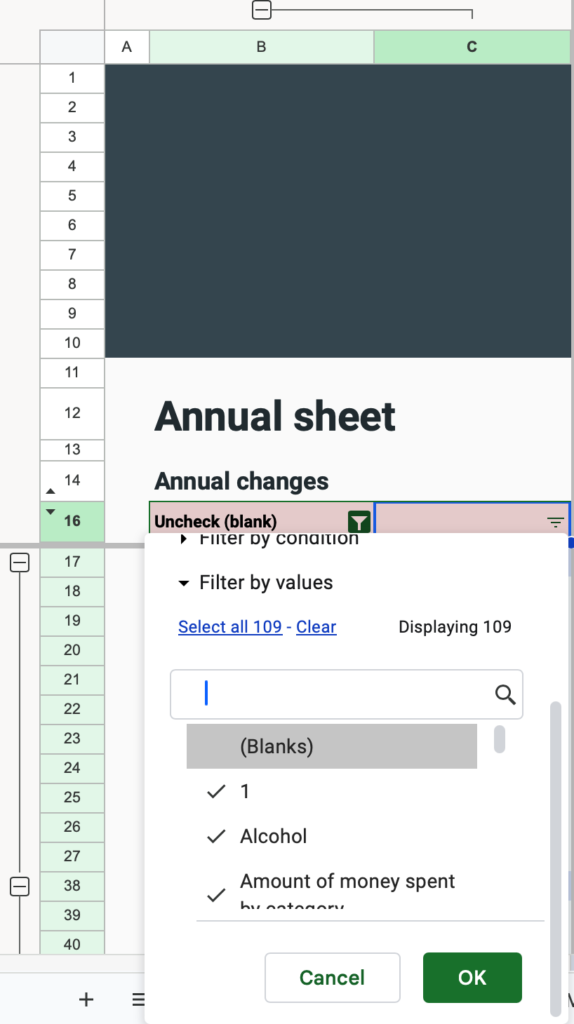
There are no input fields.
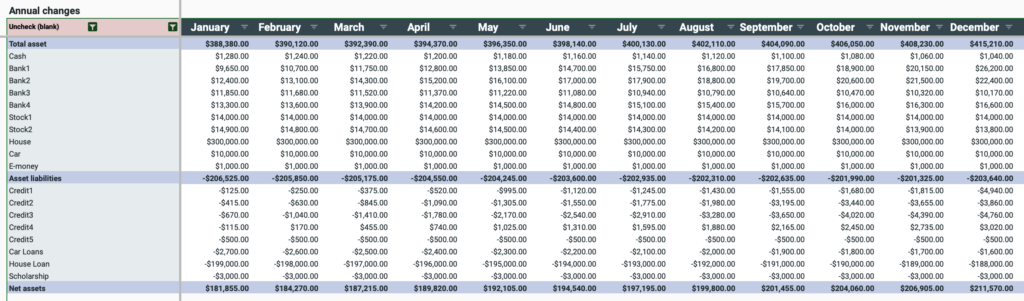
The information entered on the input sheet is displayed on a monthly basis.
Asset
Asset changes for brokerage firms and individual stocks are not supported.
If you wish to keep a firm record, please correct the monthly asset amount by manual input.
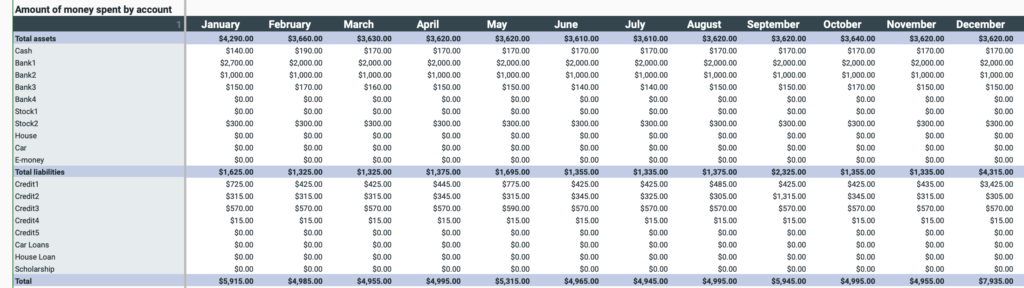
Consumption by account
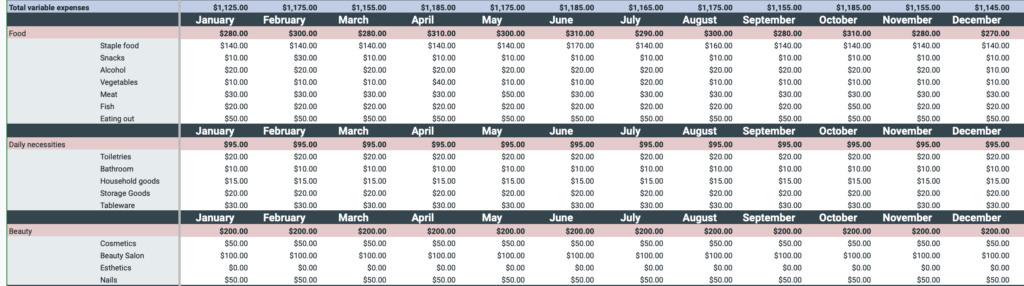
Consumption Amount by Expenses
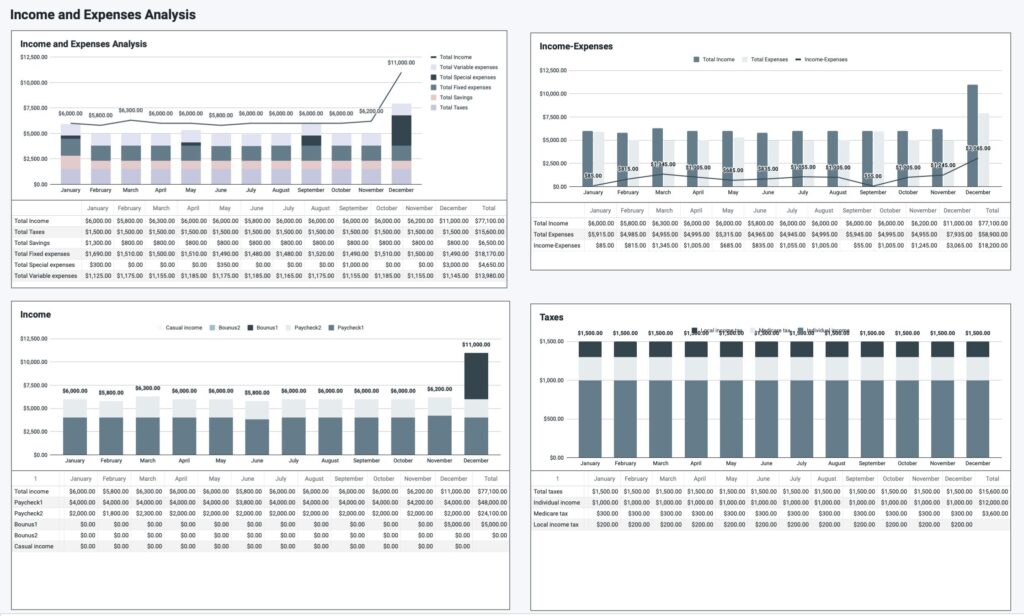
Income/Expense Analysis Sheet
The graph shows the annual change in consumption by expense category.
Displayed items
- Income and Expenditure Balance
- Income
- Taxes
- Savings
- Fixed Expenses
- Variable expenses
- Special Expenses
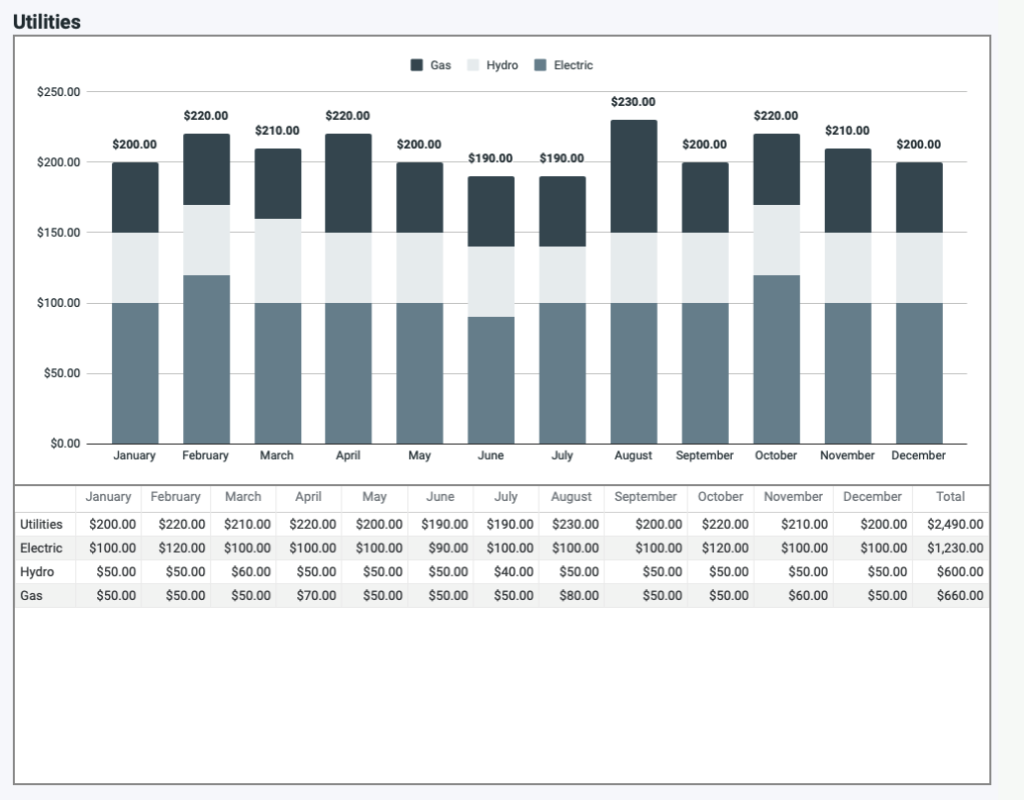
Fixed Expense Subitem Sheet
Graphical representation of the annual change in the amount spent on fixed cost sub-items.
The total amount is the sum of the sub-items.
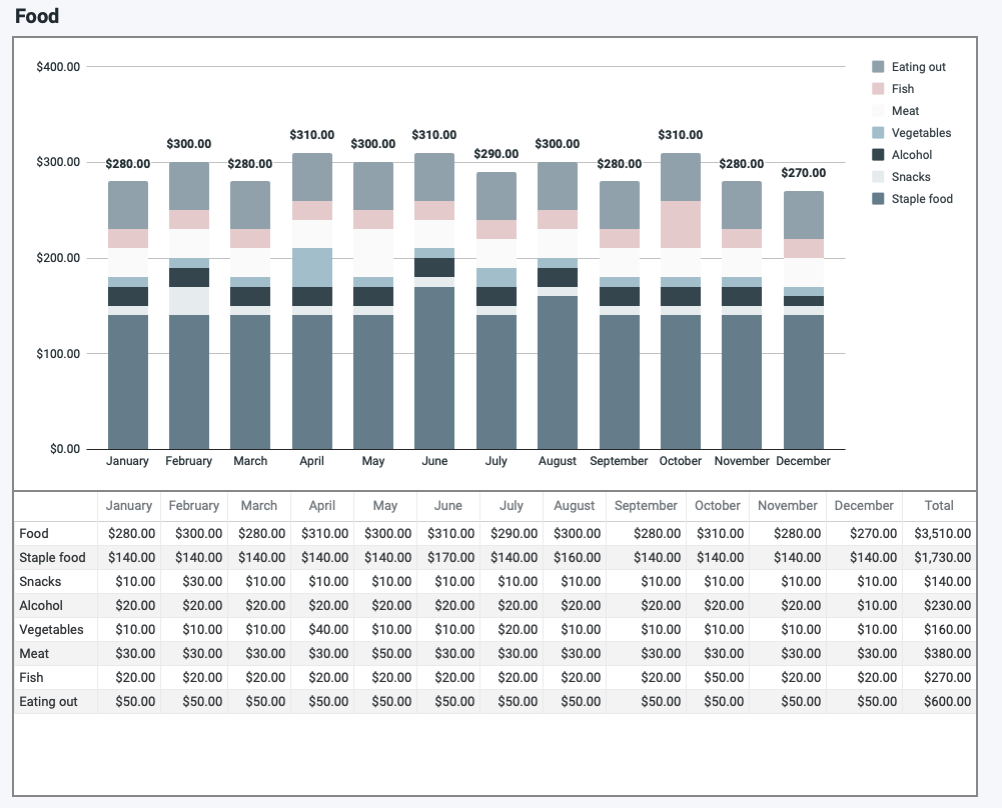
Variable cost sub-item sheet
Graphical representation of the annual change in the amount spent on variable cost sub-items.
The total amount is the sum of the sub-items.
Search Sheet
Displays individual annual trends from slicers of store name, item name, account, and remarks.
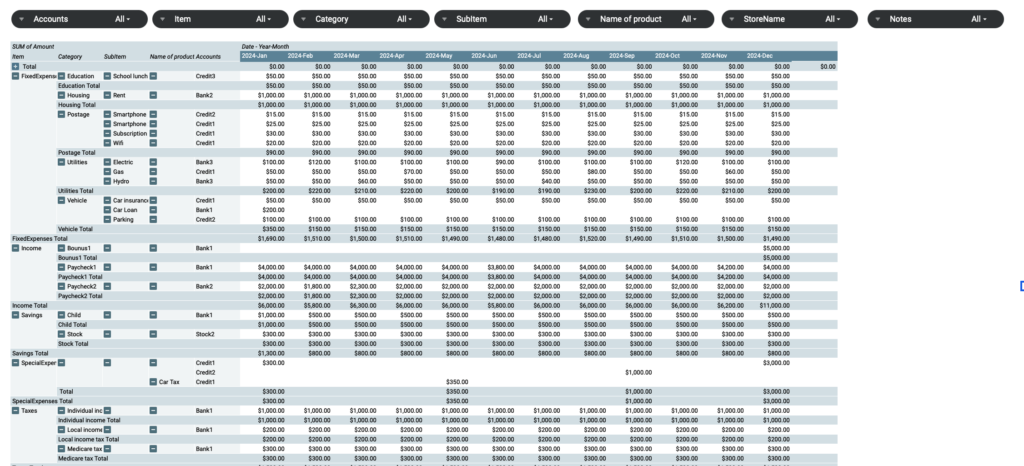
To refine a specific item name, click “Clear” on the slicer.
Once cleared, select the specific item name and click “OK”.
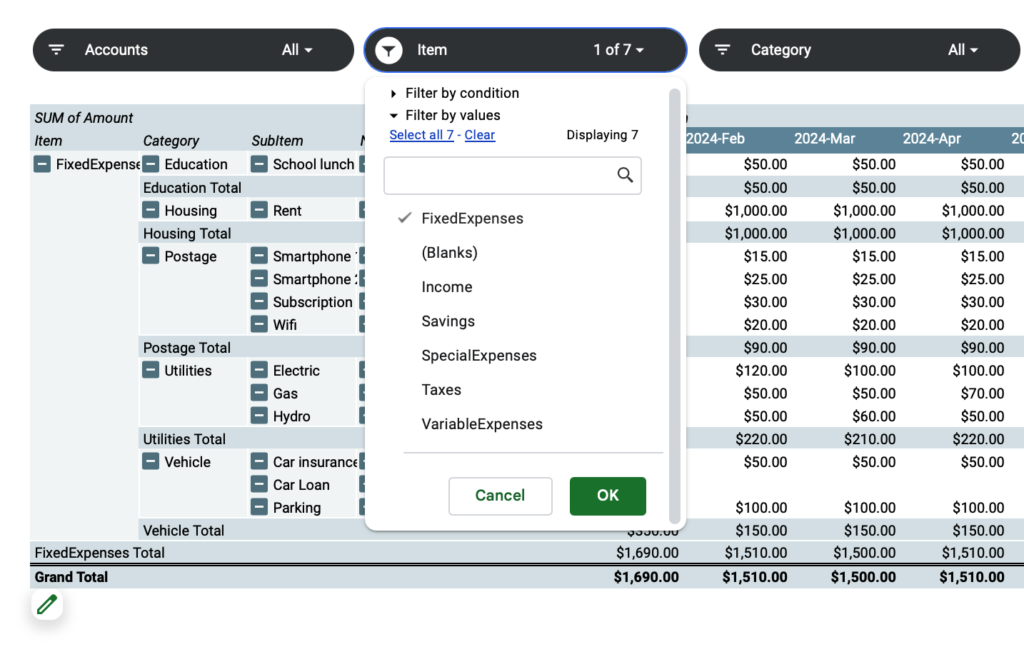
To undo, click "Select All".
Asset Analysis Sheet
Display Items
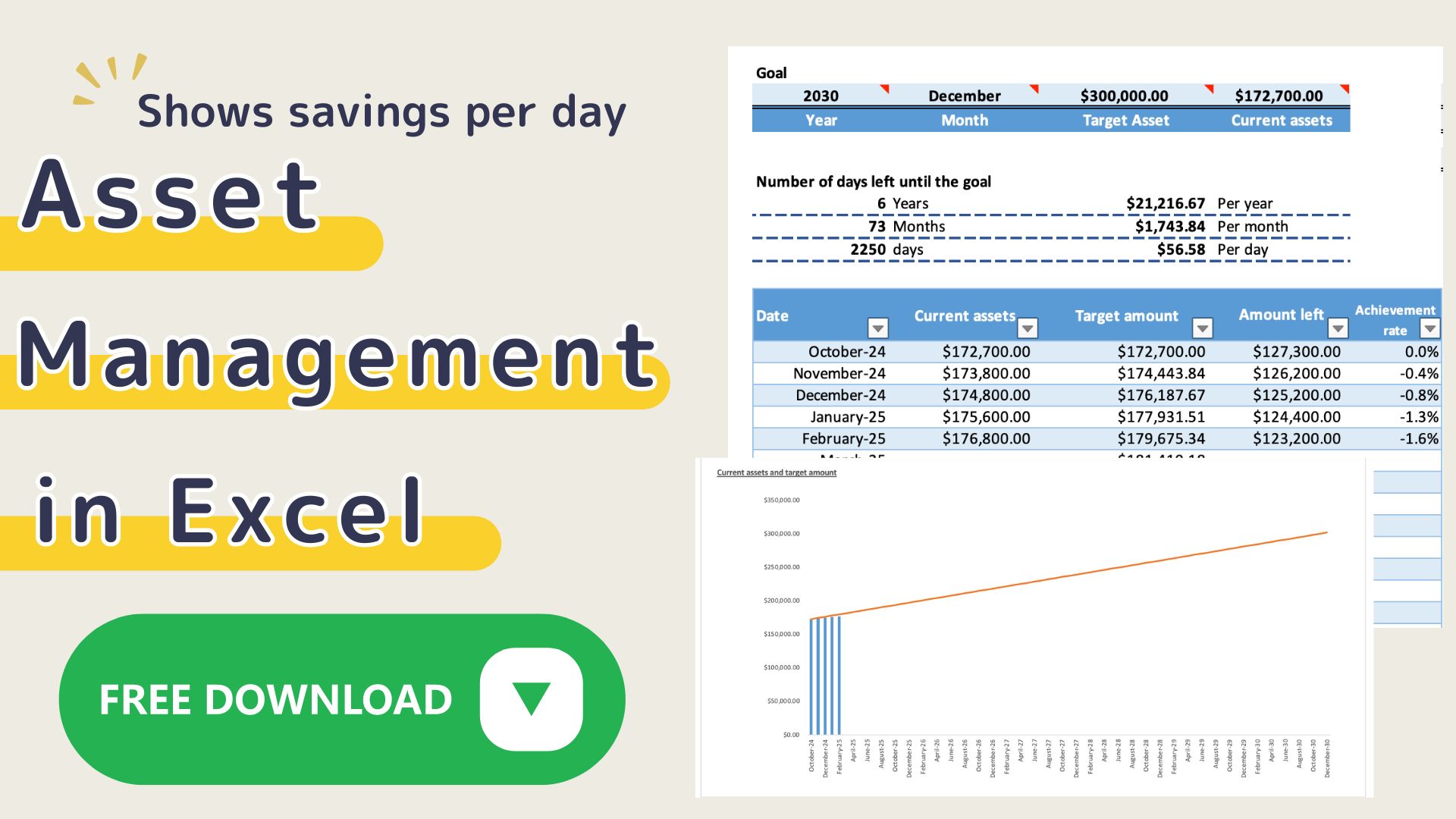
- Target Assets
- Current assets
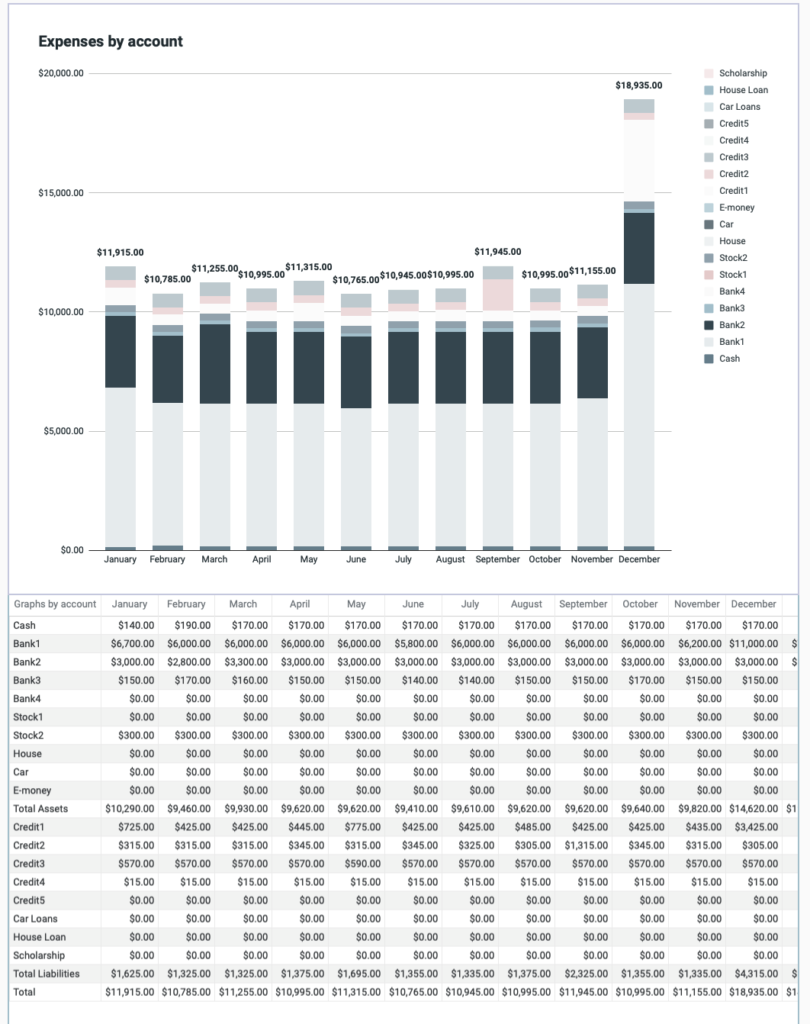
- Amount spent by account (bar graph)
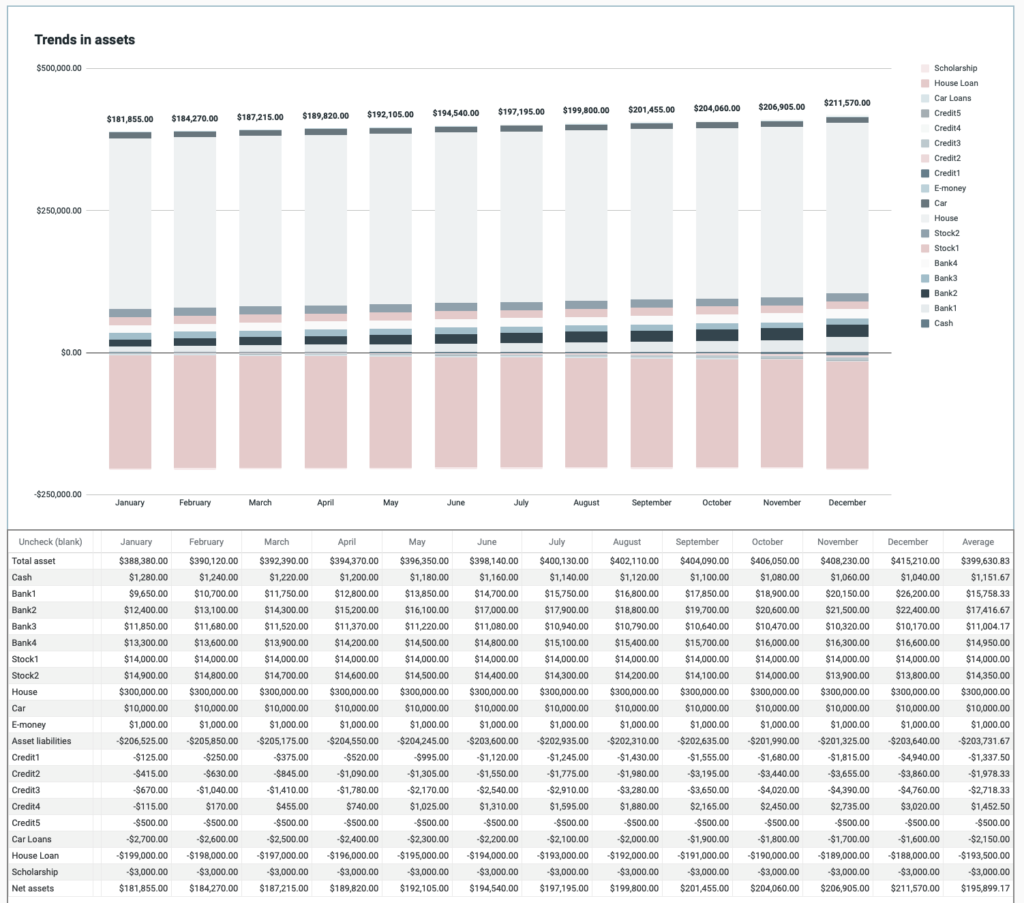
- Changes in assets (bar graph)
Target Assets
Please enter your target assets.
Please enter your target assets for this year and for the next several years.

Current Assets
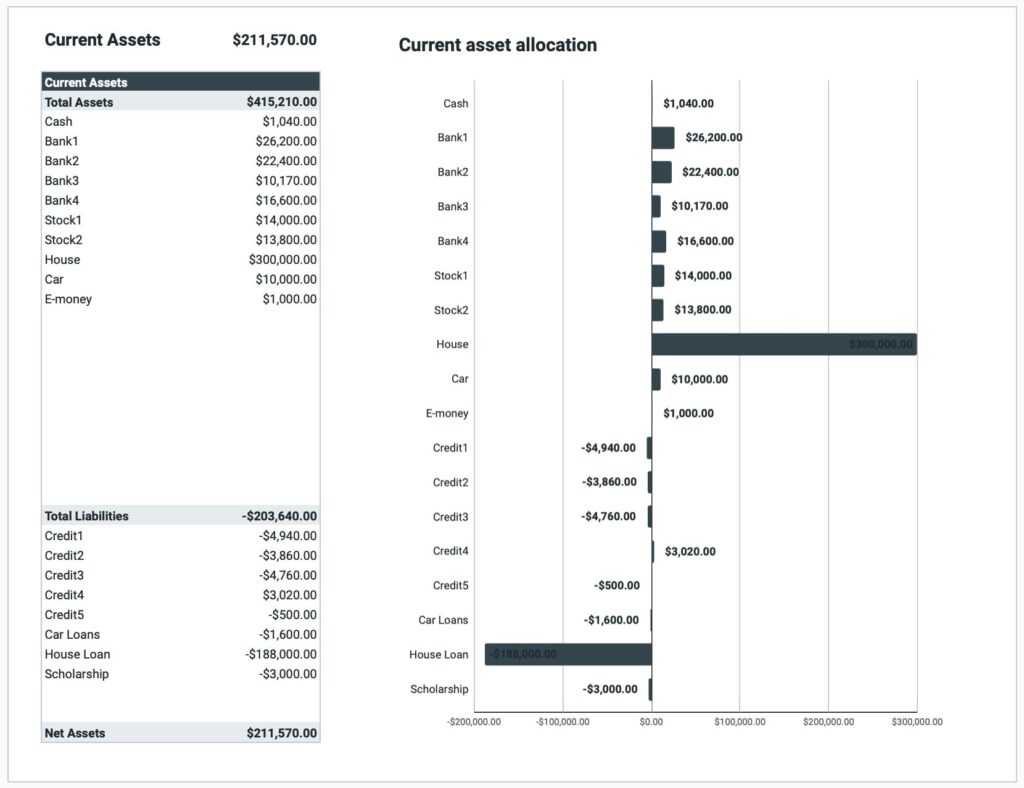
Change in spending by accounts
Annual Assets
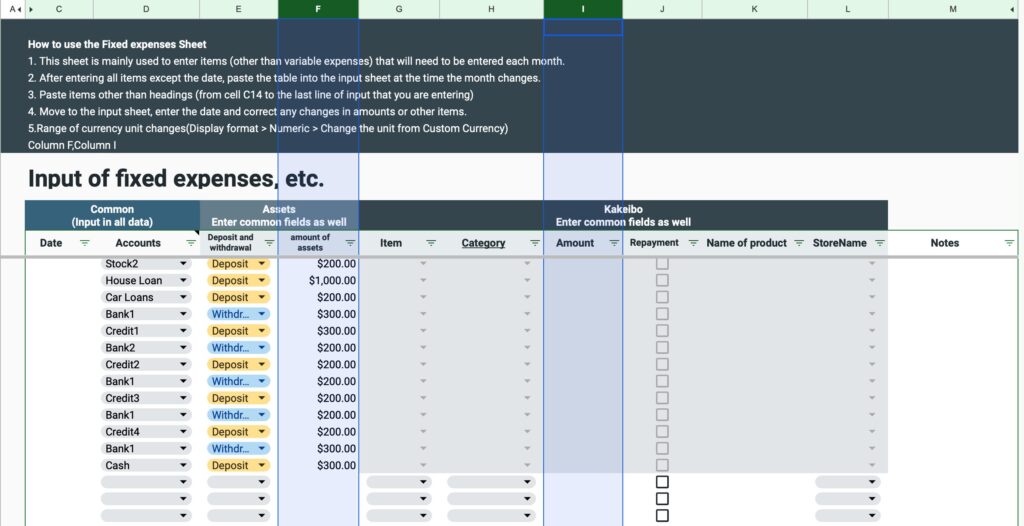
How to change currency units
The default currency unit is the dollar.
The top of the sheet shows the range in which the currency unit is to be changed.
Click on the range listed to change the unit of measure.
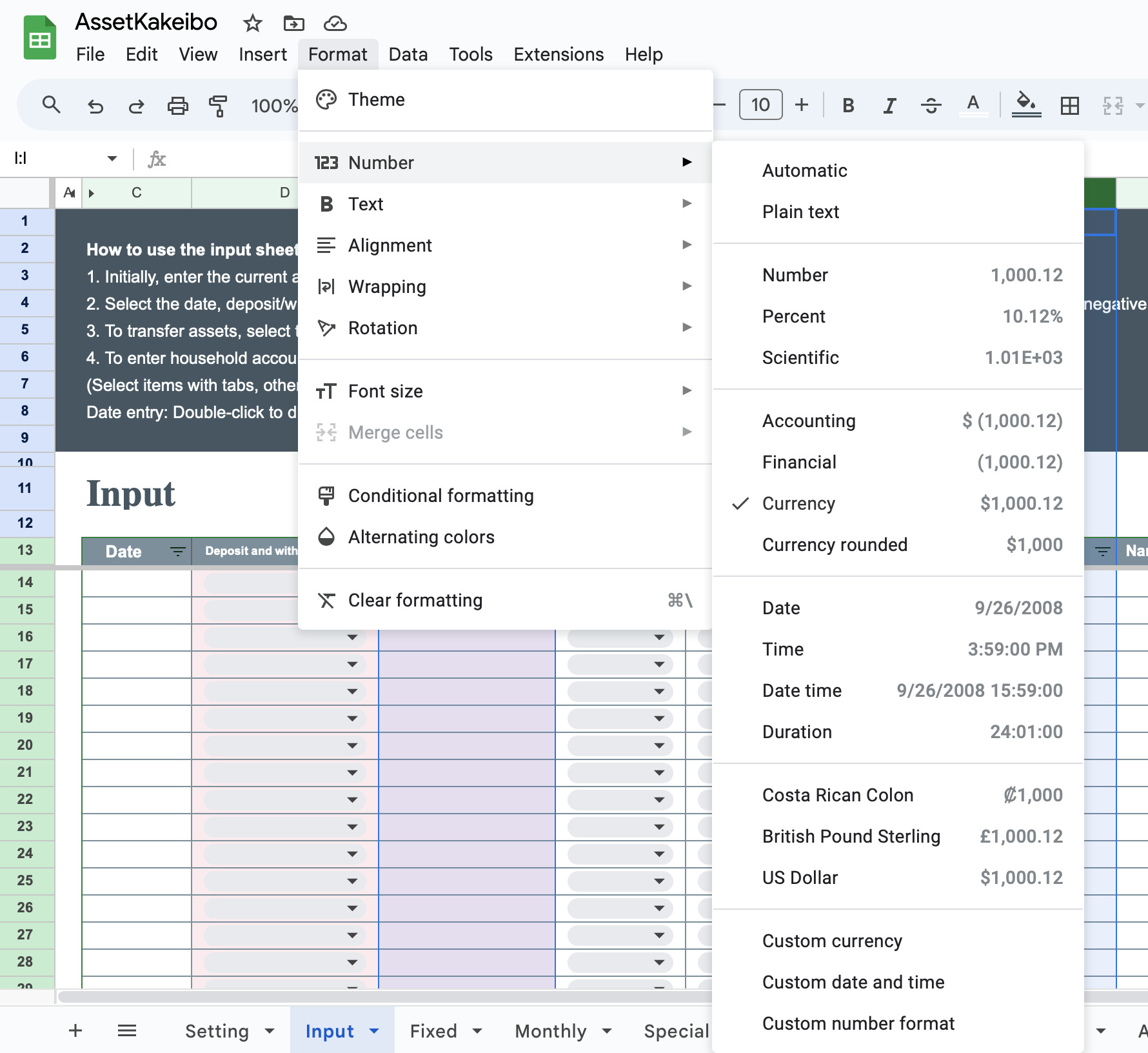
Click on Format,Number,Currency.
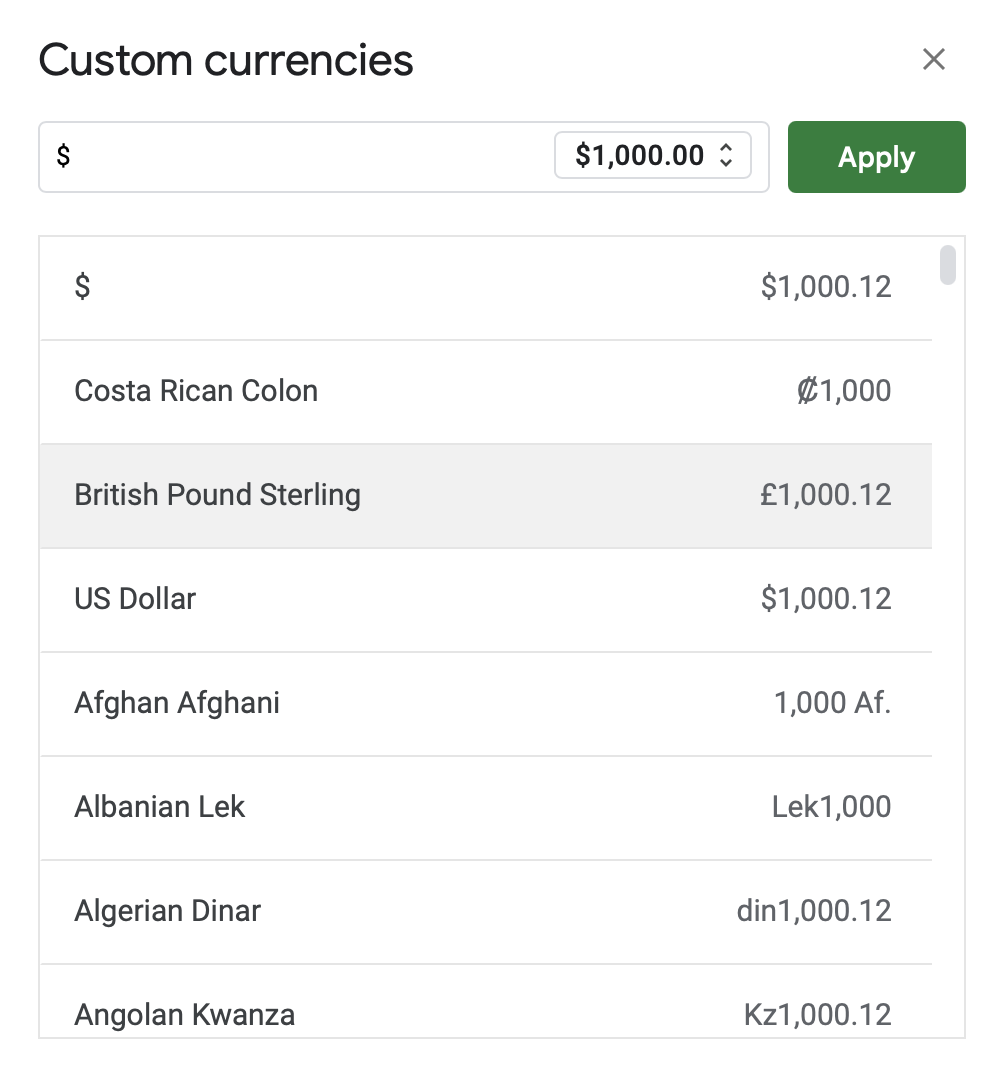
Select the currency unit for your country and click ”Apply".
Do all of this work for each sheet.
Download
This Kakeibo sales are paid by credit card or PayPal.
Payment is made through STORES.
Price: 3000JPY