“Why is there so little money left this month…?”
Even if you’re tracking your budget,
you may still feel this way.
But the problem isn’t your effort.
The real problem is this:
You can’t see your spending in advance.
Why Monthly Budgets Fail
Most people manage money like this:
- Track income and expenses monthly
- Review at the end of the month
But this approach misses something important.
Big expenses don’t happen every month.
For example:
- Birthdays
- Christmas
- Travel
- Insurance payments
- School expenses
These are called annual or special expenses.
And when they’re invisible…
They suddenly destroy your monthly balance.
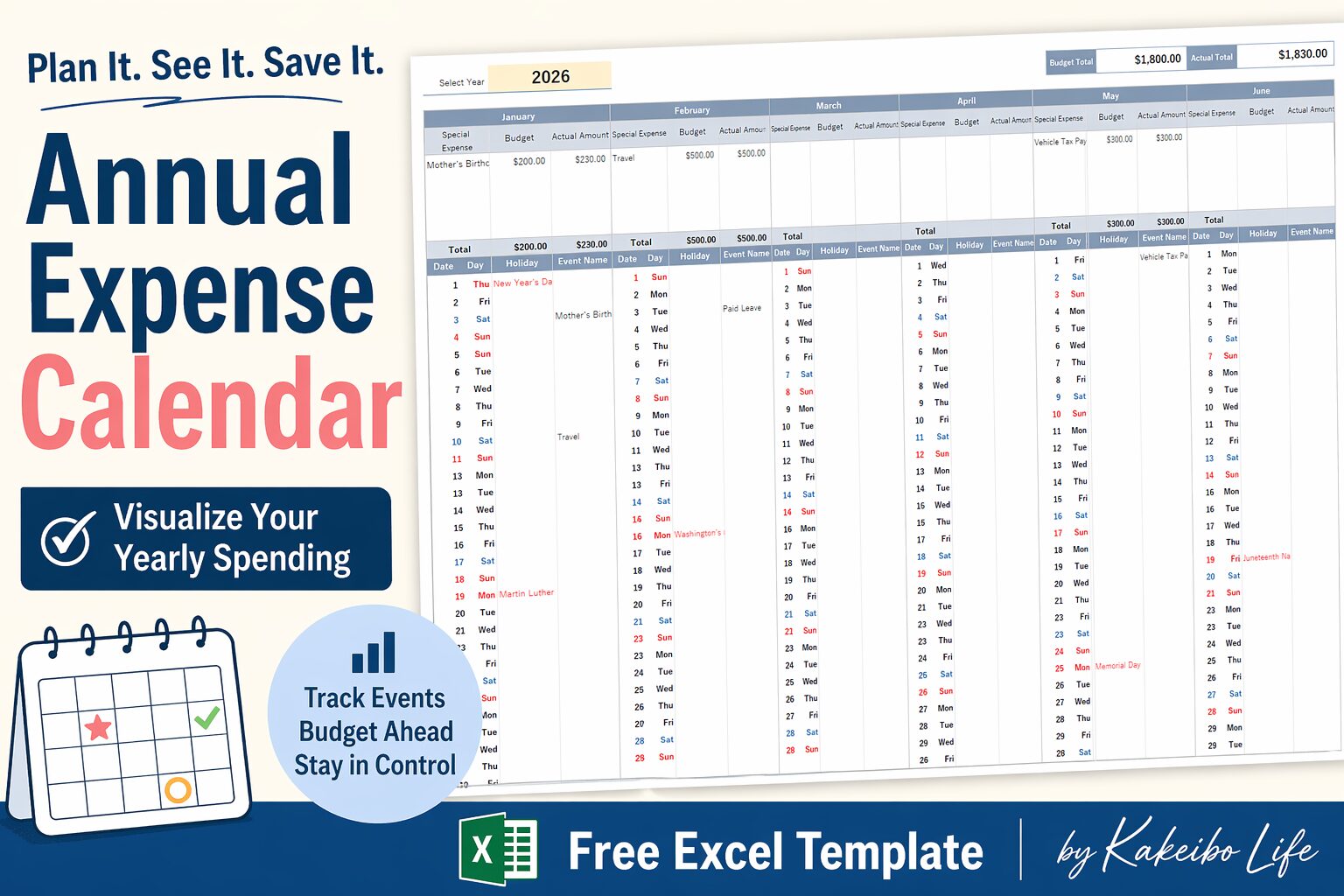
The Solution: Annual Budget Calendar
That’s why I created this:
A Budget Calendar that visualizes your entire year
Instead of reacting to money…
You start planning ahead.
What Is a Budget Calendar
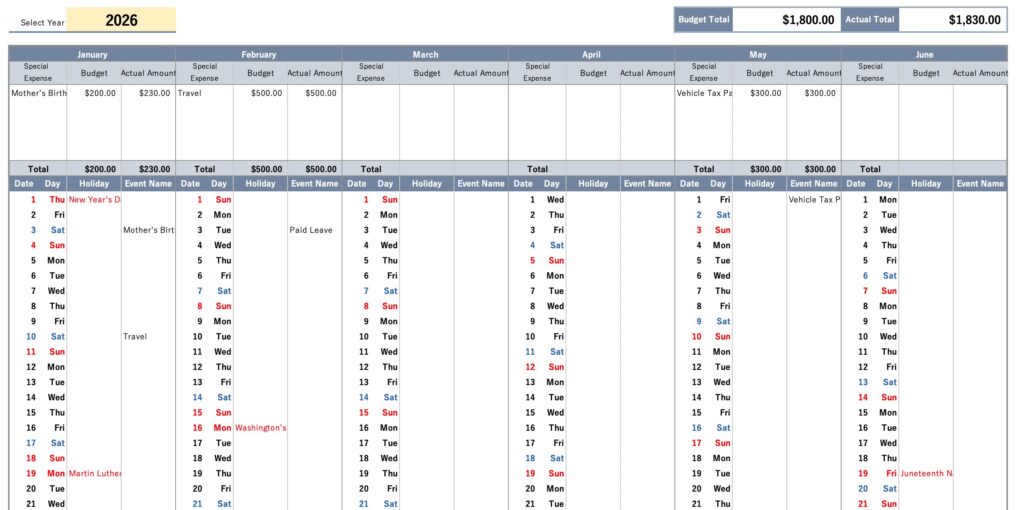
A Budget Calendar is a simple tool that allows you to:
- See all your yearly expenses at a glance
- Plan spending before it happens
- Balance your monthly budget more accurately
Think of it as:
A map of your money across the year
What You Can Visualize
With this template, you can track:
- Holidays and seasonal events
- Birthdays and anniversaries
- Annual subscriptions
- Insurance payments
- Travel and leisure costs
- School and family-related expenses
When everything is visible…
Money stops being stressful
And starts becoming predictable
Why This Changes Everything
When you can see your future expenses:
- You stop overspending
- You stop feeling anxious
- You start making intentional choices
This is the difference between:
- Managing money
- Designing your life with money
Who This Is For
This template is perfect if you:
- Feel like money “disappears” every month
- Want to prepare for big expenses
- Struggle to stay consistent with budgeting
- Want a simple and visual system
How to Use
Step 1: Download & Copy
Make a copy of the file before using it.
Step 2: Enter Your Events
Add important dates and expected expenses.
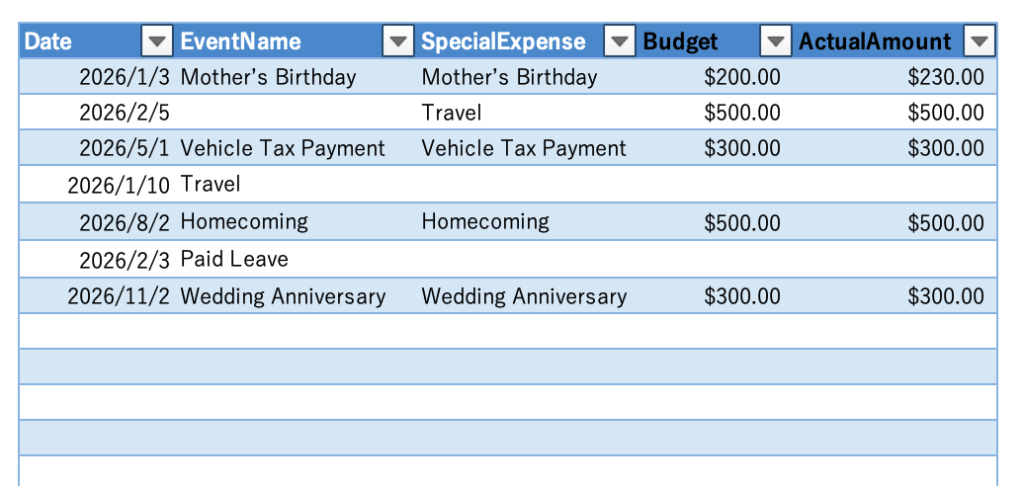
Step 3: Estimate Costs
Assign rough amounts to each event.
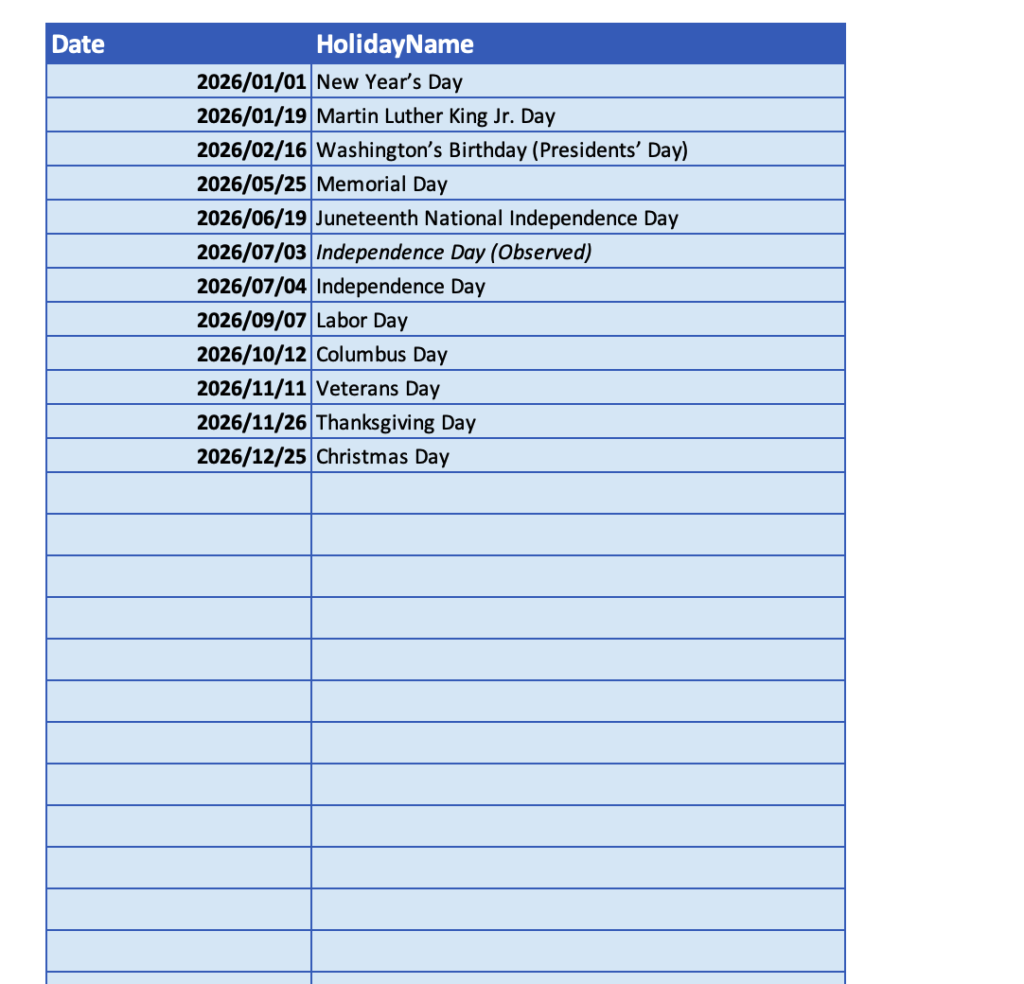
Step 4:Holiday Data
Please enter the holidays for your region and their names within the designated area on the Holidays sheet.
Enter holiday dates in YYYY/MM/DD format.
You may enter holidays for multiple years, as long as they are within the designated area.
Step 5: Review Monthly Balance
See how your yearly plan affects each month.
The Result
Instead of saying:
“I didn’t expect this expense…”
You’ll start saying:
“I already planned for this.”
Download Your Free Template
Start visualizing your money today.
Note:
This template is compatible with Microsoft 365 or Excel 2021 and later (Windows / Mac).
In older versions of Excel, some functions (such as FILTER) are not supported,
so special expenses will not be displayed correctly.
Next Step
If you want to go further:
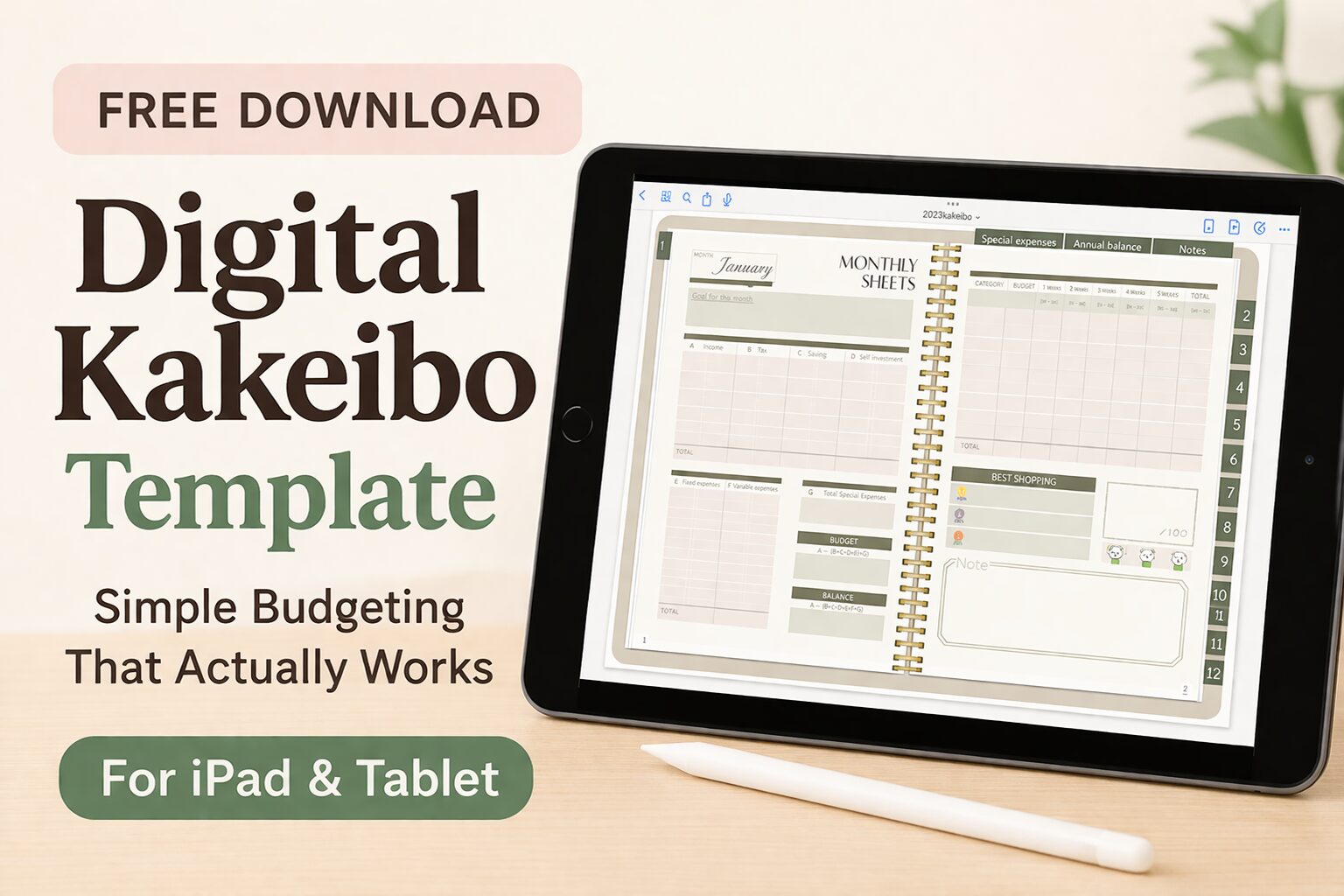
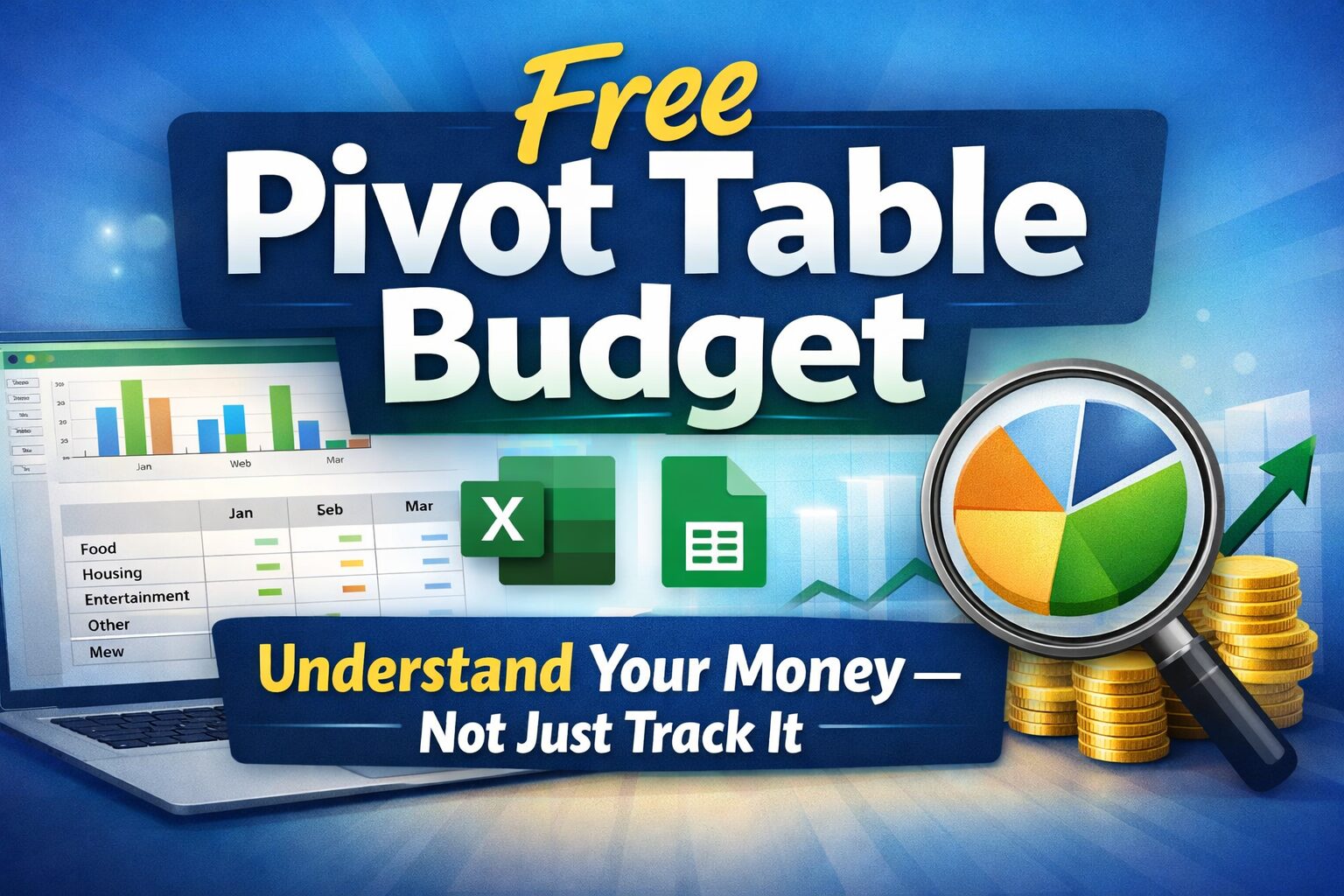
- Track your monthly spending → Budget Template
-

-
Best Kakeibo Templates (2026) | Find the Right Budget for You
“Which budget template should I choose?” If you’ve ever felt overwhelmed by too many options, you’re not alone. In this guide, you’ll find a clear ...
-
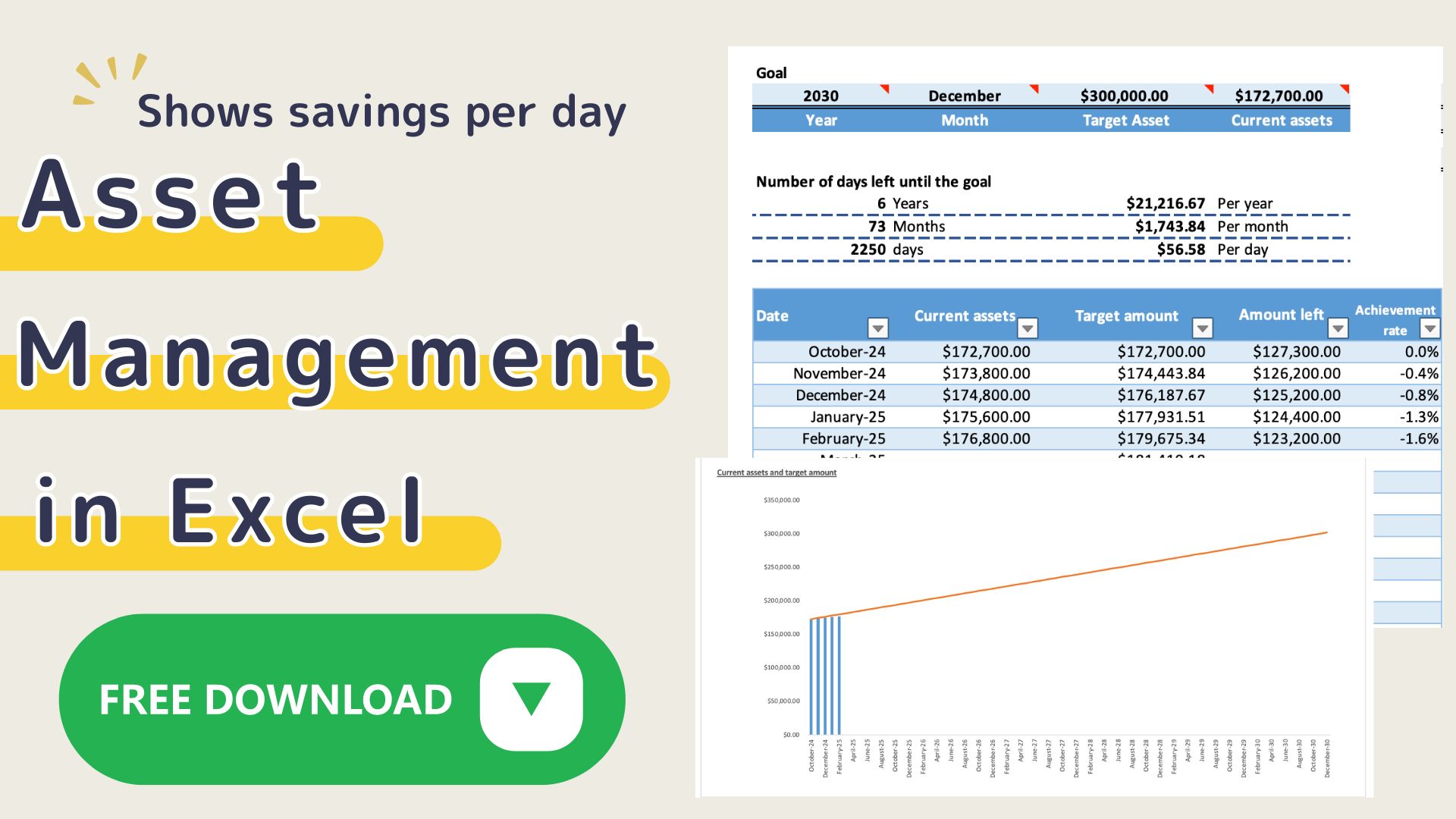
- Visualize your assets & money flow→ Asset Kakeibo
-
-
Net Worth Tracker & Budget Template (Google Sheets) | Simple & Powerful
Net Worth Tracker & Budget Template (Google Sheets) Do you feel anxious about money—even though you're saving? You’re not alone. Many people: But still feel ...
-
- Manage your income → Sales Management Template
Make your money visible. Change your life.